Article Contents:
Summary
Avetta offers an integration with DISA Global Solutions, allowing you to view DISA Worker-level drug testing and background screening results directly within Worker Management. This integration eliminates the need for Workers and Suppliers to manually enter DISA information and gives you a more complete view of Worker safety compliance, helping you make informed site access decisions.
Permissions
No permissions required, you just need a DISA account.
Feature Applicability
Available to Clients in the United States and Canada with an active DISA account.
Setting up an Account in DISA
Go to the DISA Global Solutions website and click Solutions to request the service (employee background checks /drug testing) you’re interested in to set up an account.
Linking DISA accounts in Worker Management
After setting up a DISA account, you must contact your Avetta Customer Success Manager or Account Manager to coordinate integration with the Configuration team.
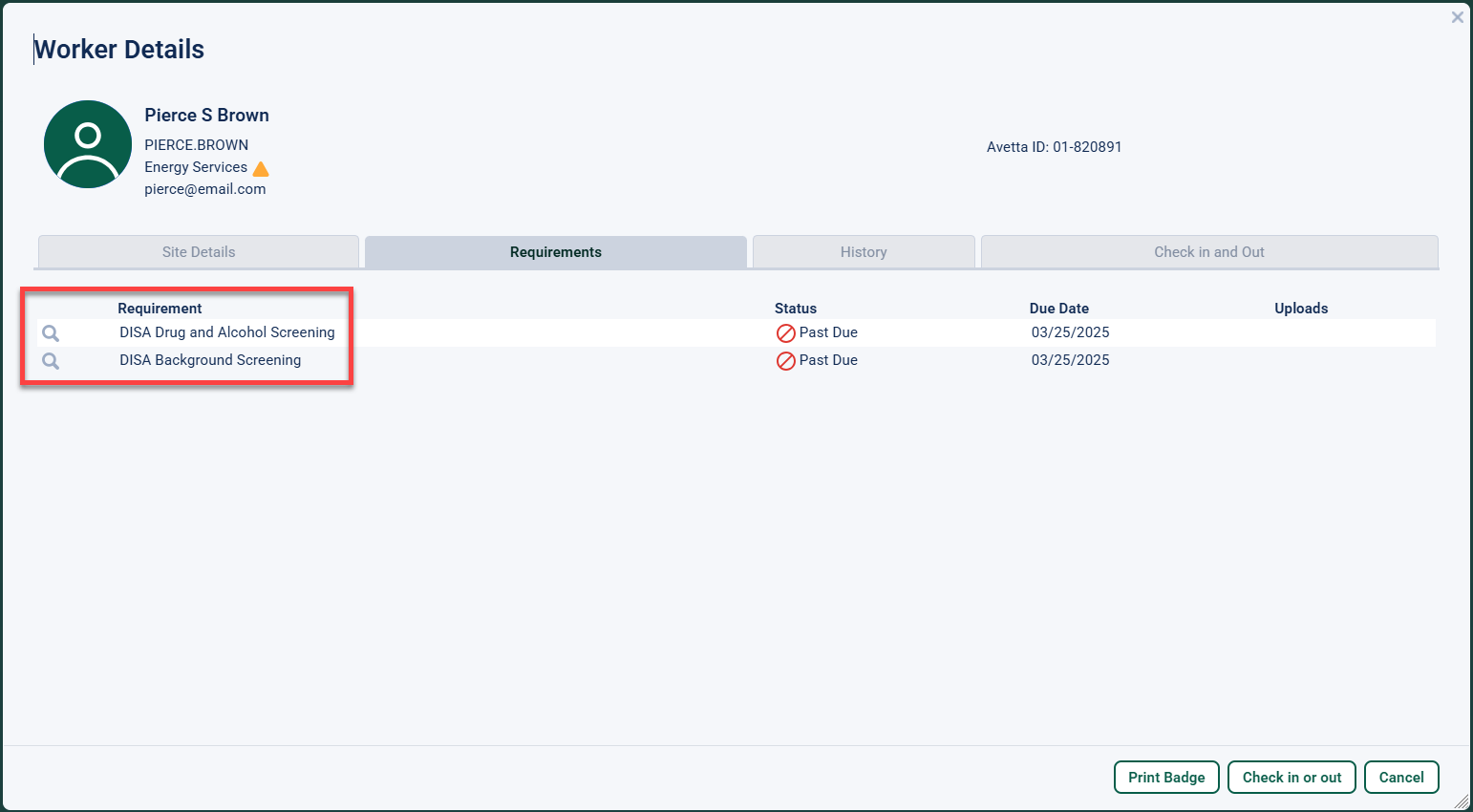
- Drug screening/background screening will show as a Worker Requirement.
- To add or change requirements:
- Ask DISA to update the requirements.
- Contact your Client Success Manager or Account Manager to update your Worker Management account.
DISA Process
Standard workflow for managing orders through DISA is outlined below:
- Order Initiation – DISA is notified of new background screening/drug screening orders.
- Depending on configuration, this is either done in DISA or Worker Management.
- Client Review:
- Notification – DISA notifies you of new orders.
- Verification - Confirm billing arrangements for the associated dealer (such as the clinic or testing facility) are in place within DISA.
- Approve Order:
- Approve the order within DISA, initiating the screening or testing process.
- Review Results:
- Results Posted - DISA posts the results to your account.
- Results include grading comments on the Worker’s compliance.
- Tier 2 Review - Borderline or conditional cases are sent to you to approve or reject.
- Finalize Grading:
- Approved - Record is updated to Tier 1
- Rejected - Record is updated to Tier 3
- This triggers an “Adverse Action Letter” notifying the Worker of the decision.
- Integration Feedback:
- DISA order information is sent to Avetta through an API update every 6 hours.
Viewing DISA information in Worker Management
Worker DISA information is viewed the same way as other compliance information in Worker Management.
- Search and select desired Worker.
- Click the Worker name to view their “Worker Details”.
- Click Requirements.
- Click the Magnifying Glass icon
 to see requirement details.
Order Review Workflows
Three workflows are available for initiating DISA orders via Worker Management. These workflows are not exclusive to each other. For example, you can request that both the Worker and Supplier are able to initiate the process, or any other combination you desire.
Client-Initiated Workflow
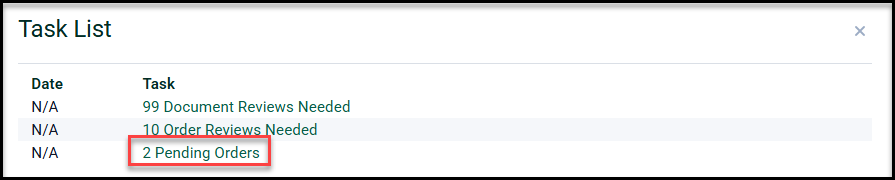
You will see a “Pending Orders” task in your “Task List”. Clicking on the task takes you to a “Review Orders” page where a list of all Workers assigned to sites or roles requiring drug tests or background screenings will show.
- Clicking Place Order next to a Worker name initiates the drug screening or background check in DISA.
- Your company is billed for the screening.
- Clicking Cancel removes the Worker from the list.
- “Missing Fields” text indicates the Worker is missing one of the following fields (required by DISA and configured in Worker Management) before the order can be placed:
- Email Address
- Phone Number
- Name
Supplier-Initiated Workflow
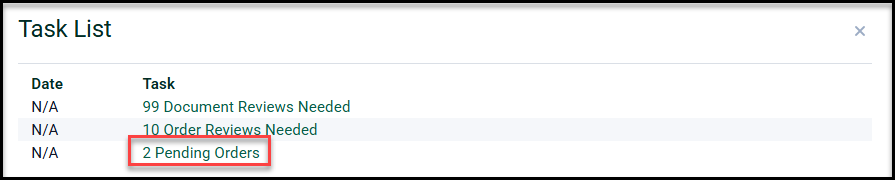
The Supplier sees a “Pending Orders” task in their “Task List”. Clicking on the task takes them to a “Review Orders” page where a list of all Workers assigned to sites or roles requiring drug screenings or background checks will show.
- Clicking Place Order next to a Worker name initiates the drug screening or background check in DISA.
- Your company will be billed for the screening.
- Clicking Cancel removes the Worker from the list.
- “Missing Fields” text indicates the Worker is missing one of the following fields (required by DISA and configured in Worker Management) before the order can be placed:
- Email Address
- Phone Number
- Name
Worker-Initiated Workflow
The Worker sees a Drug and Alcohol or Background Screening task in their “Requirements To Do List”. Clicking on the task allows them to provide any required information and initiate the drug screening or background check in DISA
Order Triggers
The following actions may trigger a DISA order depending on your company Worker Management configuration:
- Adding or Updating Worker Profiles - Creating a new Worker profile or updating an existing one
- Adding or Updating Worker Assignments - Assigning a Worker to a new site or role
- Scheduled Cadence – You can choose to re-trigger a drug screening/background check on a specific cadence
Trigger Limitations
- Name Changes do not trigger a new DISA order.
- Order Cancellations are not supported via API.
- Suppliers must contact you to request manual cancellation of a pending or active order.
Best Practice Recommendations
Ensure accurate Worker identity information is in Worker Management and DISA to prevent delays in the process.
- Run the “Worker Name Changes” Report Monthly
- Schedule the “Worker Name Changes” report in Worker Management to capture any updates to Worker names across all Suppliers.
- Review and Validate
- Filter the report for Workers with DISA requirements.
- Confirm they are active and assigned to the applicable site.
- Update or Resubmit
- Contact the Supplier Admin for each affected Worker:
- If the name change is minor (e.g., spelling correction), instruct them to update the Worker profile in Worker Management.
- If the name change impacts DISA screening (e.g., legal name change), make sure a new order is submitted to DISA.
Frequently Asked Questions (FAQs)
General
- Is DISA compliance information visible in both the desktop and mobile app?
- Yes, just like other compliance information, DISA results are viewable in both desktop and mobile apps.
- Do DISA requirements show in a Report?
- DISA requirements appear on any Worker Management reports showing compliance and/or requirement details.
- What do Suppliers and Workers see?
Creation and Configuration
- After setup, is there anything else I need to do?
- You do not need to do anything once setup is completed. Configuration will map your requirements to DISA, and you can interact with DISA as usual.
- If your company changes their Worker requirements, you will need to work with our Configuration team to re-map them.
BACK TO TOP