Article Contents
Summary
Permissions
Viewing DISA Information in Worker Management
Worker Experience
Order Review Workflows
Order Triggers
Frequently Asked Questions (FAQs)
Summary
Avetta offers an integration with DISA Global Solutions, allowing you and your Clients to view DISA Worker-level drug testing and background screening results directly within Worker Management. This integration eliminates the need for you and your Workers to manually enter DISA information.
Permissions
No permissions required
- Your company only has access if one of your Clients has enabled it
Viewing DISA Information in Worker Management
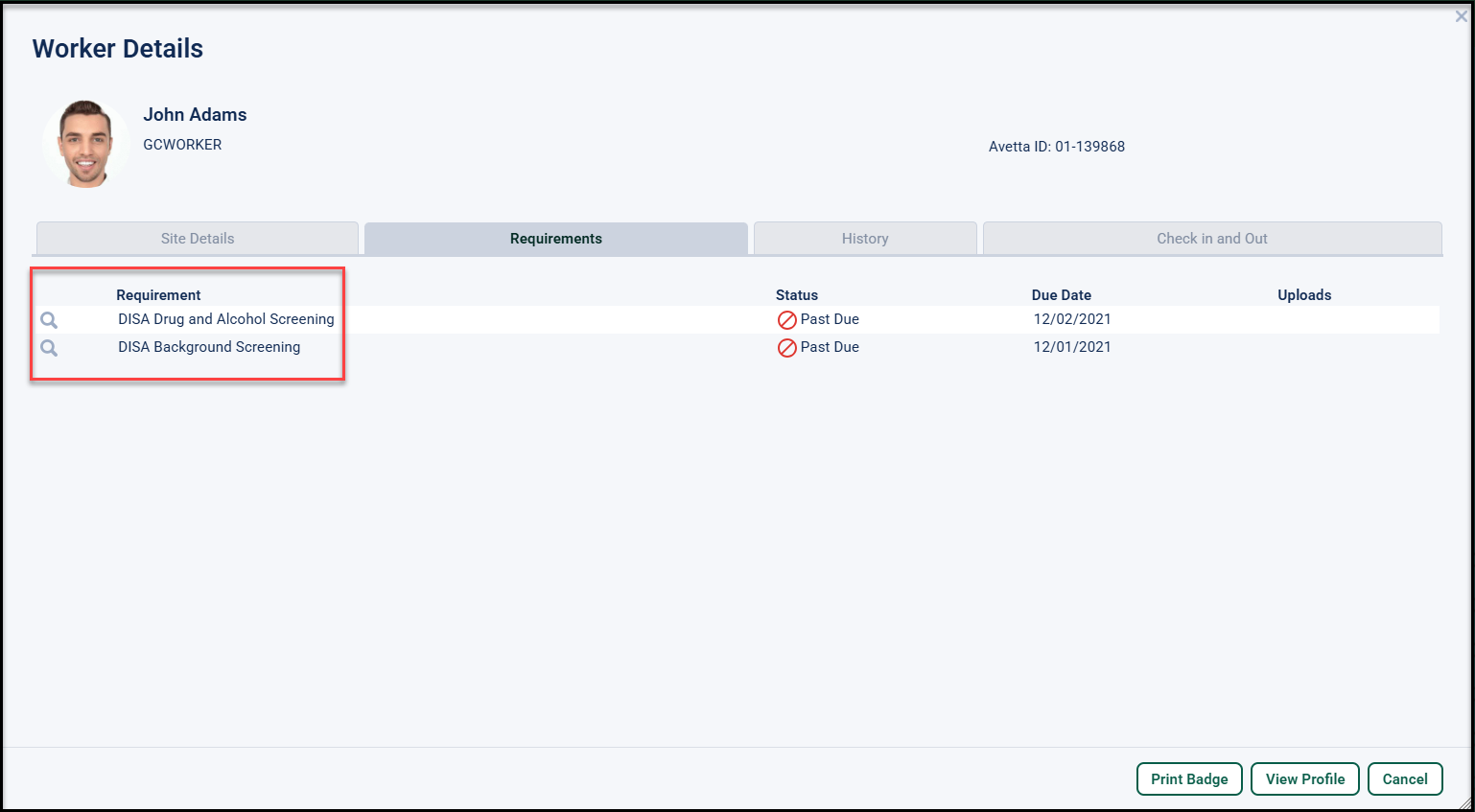
Worker DISA information is viewed the same way as other compliance information in Worker Management.
- Search and select the Worker.
- The Worker must be assigned to DISA enabled site(s).
- Click the Worker name to view their “Worker Details”.
- Click Requirements.
- Click the Magnifying Glass icon
 to see requirement details.
Worker Experience
Viewing DISA Information in Worker Management
DISA requirements are viewed the same way as other requirements in Worker Management.
DISA Worker Process
- Notification: Workers are notified by DISA once you approve the order.
- Candidate Entry: Workers must fill out personal information and sign consent forms within DISA.
- Submit: Workers complete and submit the required documentation within DISA.
- Review: DISA conducts the drug test/background check.
- Outcome:
- Tier 1: Pass
- Tier 2: Client reviews
- Tier 3: Fail, may receive Adverse Action Letter
Order Review Workflows
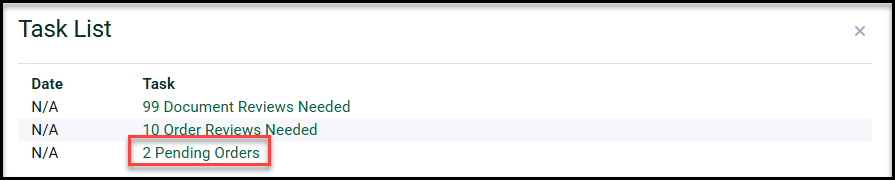
When enabled by your Client, you can initiate a DISA order. If this is the case, you will see a “Pending Orders” task in your “Task List”. Clicking on the task takes you to a “Review Orders” page where a list of all Workers assigned to sites or roles requiring drug screenings or background checks will show.
- Clicking Place Order next to a Worker name initiates the drug screening or background check in DISA.
- Your company is billed for the screening.
- Clicking Cancel removes the Worker from the list.
- “Missing Fields” text indicates the Worker is missing one of the following fields (required by DISA and configured in Worker Management) before the order can be placed:
- Email Address
- Phone Number
- Name
Worker-Initiated Workflow
When enabled by your Client, your Workers will see a Drug and Alcohol or Background Screening task in their “Requirements To Do List”. Clicking on the task allows them to provide any required information and initiate the drug screening or background check in DISA.
Order Triggers
The following actions may trigger a DISA order depending on your Client’s Worker Management configuration:
- Adding or Updating Worker Profiles - Creating a new Worker profile or updating an existing one
- Adding or Updating Worker Assignments - Assigning a Worker to a new site or role
- Scheduled Cadence – Clients can choose to re-trigger a drug screening/background check on a specific cadence
Trigger Limitations
- Name Changes do not trigger a new DISA order.
- Order Cancellations are not supported via API.
- You must contact your Client to request manual cancellation of a pending or active order.
Frequently Asked Questions (FAQs)
General
- Is DISA compliance information visible in both the desktop and mobile app?
- Yes, just like other compliance information, DISA results are viewable in both desktop and mobile apps.
- Do DISA requirements show in a report?
- DISA requirements appear on any Worker Management reports showing compliance and/or requirement details.