Article Contents
_______________________________________________________________________________________________________________________
Summary
This guide explains how to assign sites and roles to Workers using the "Assignments" menu, which supports both individual and bulk assignments.
Some Clients require Workers to complete specific site or role-related tasks before starting a job. It’s the responsibility of admins with permission to manage Workers to ensure Workers are assigned the correct sites and roles. Once assigned, any related requirements will appear on the Worker’s “To Do” list.
While there are a few ways to make these assignments (such as from a Worker’s profile or the Dashboard Connection Report), this guide focuses on the “Assignments” menu. Alternative methods are briefly outlined at the end.
Managing Sites
Here’s how to assign/unassign site(s) for your Worker(s):
- Click Assignments.
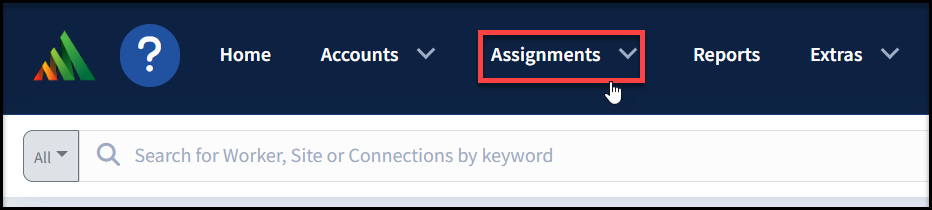
- Select Assign Sites.
- Click the "Workers" field.
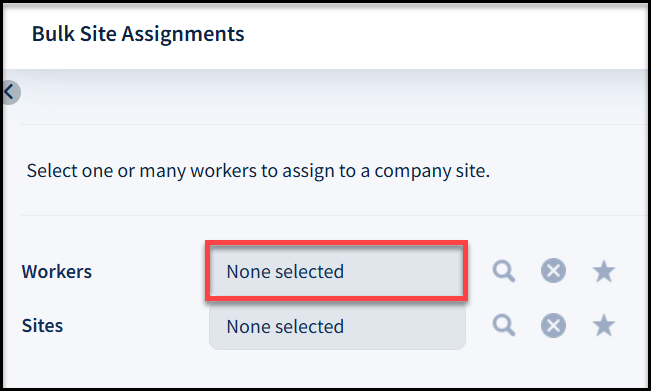
- Search and select desired Worker(s).
- The "Search Worker" list allows you to filter by Workers missing a site assignment. The “Show Only Unassigned” filter is selected by default but can be removed if desired.
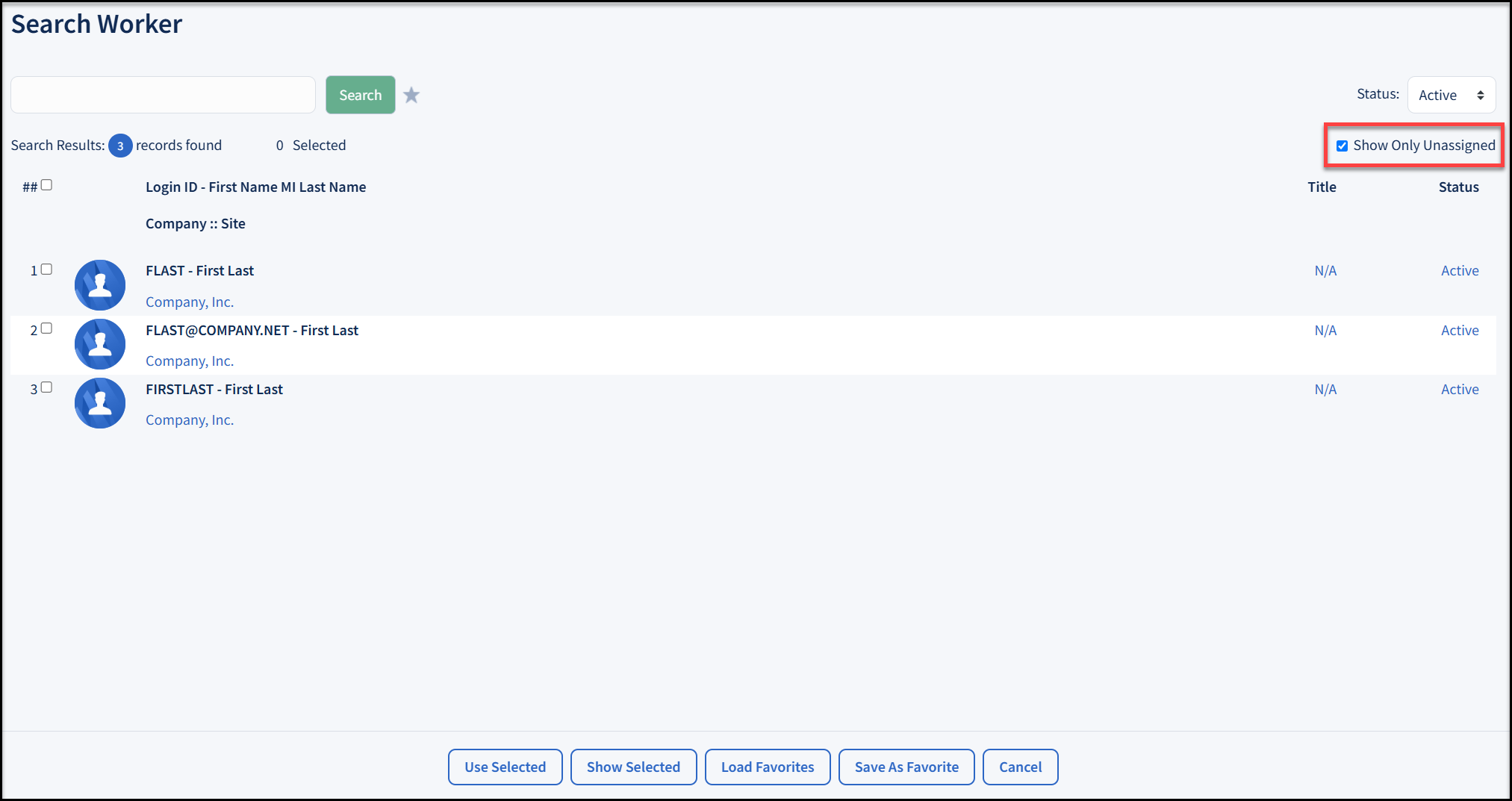
- Click Use Selected.
- Click the "Sites" field.
- Search and select desired site(s).
- Click Use Selected.
- Click Continue in the left “Actions” menu.

- Here you can review the selected Sites and Workers by clicking the magnifying glass
 icon next to each box
 - Confirm by clicking Continue again
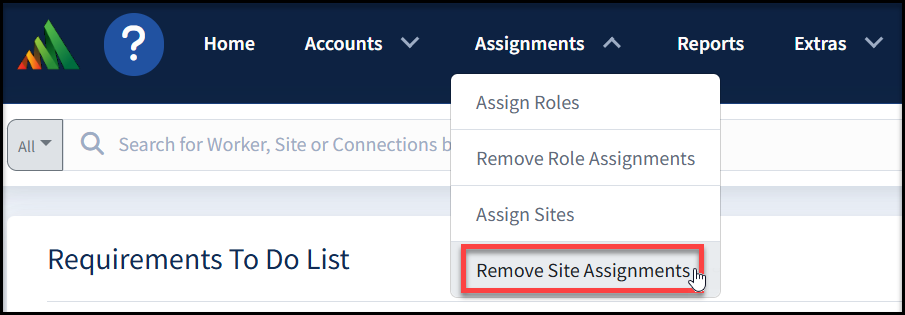
- If you need to undo an assignment that has been made, click Assignments > Remove Site Assignments and follow the same process outlined above
BACK TO TOP
Managing Roles
Here’s how to assign/unassign role(s) for your Worker(s):
- Click Assignments
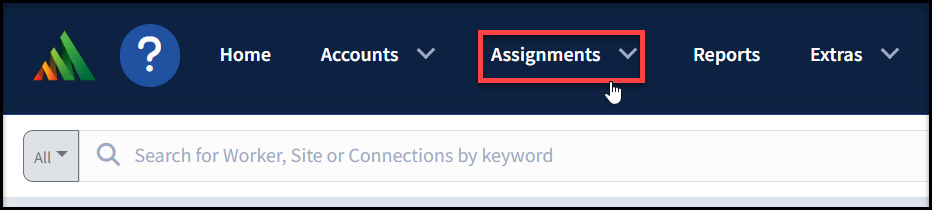
- Select Assign Roles
- Click the "Workers" field
- Search and select desired Worker(s)
-
- The "Search Worker" list allows you to filter by Workers missing a role assignment. The “Show Only Unassigned” filter is selected by default but can be removed if desired.
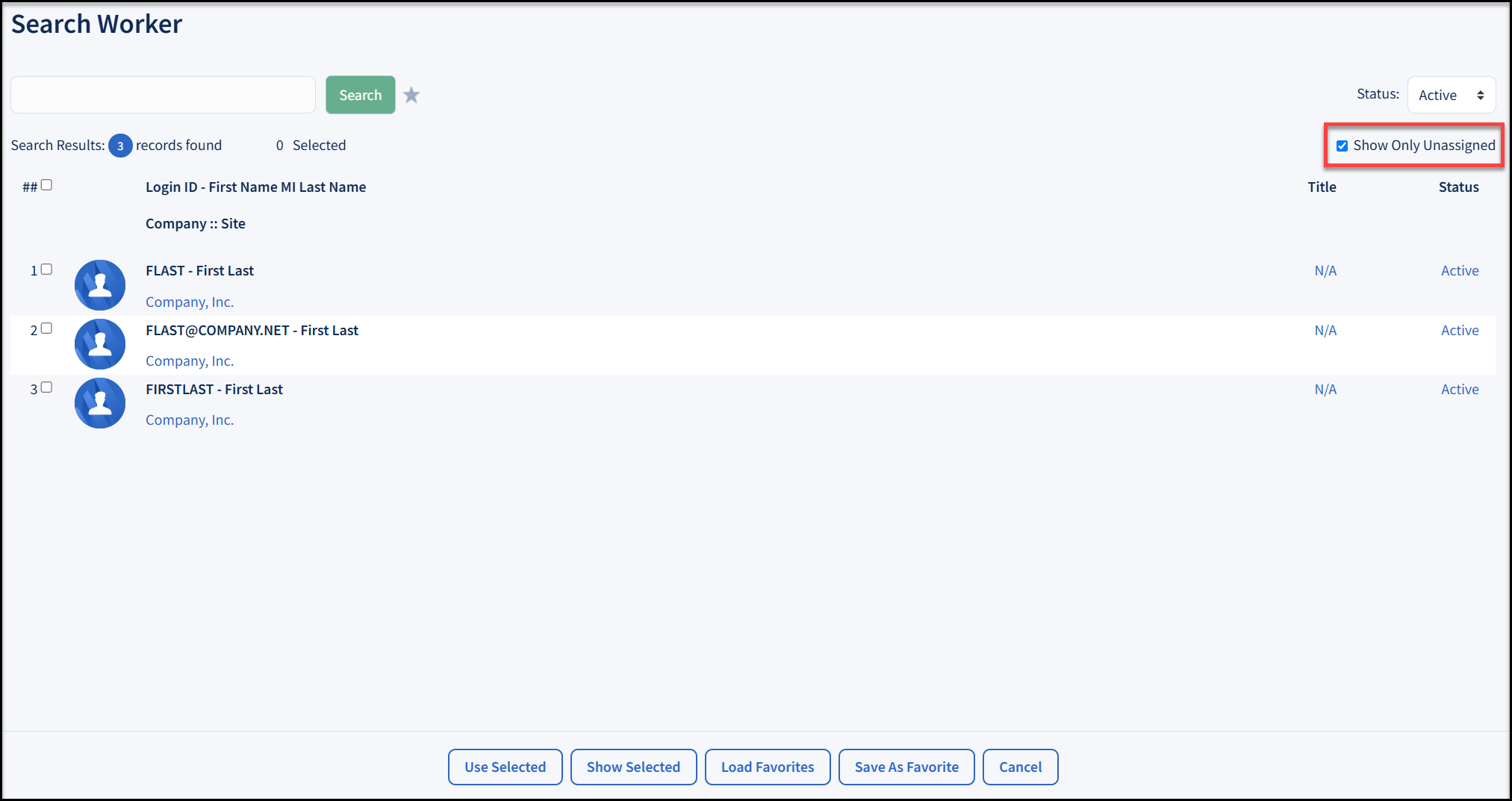
- Click Use Selected
- Click "Roles" field
- Search and select desired role(s)
- Click Continue from the left "Actions" menu
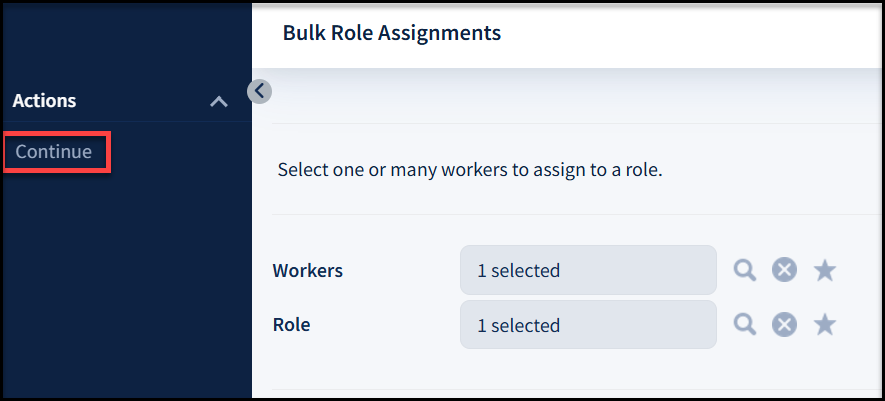
- Here you can review the selected Roles and Workers by clicking the magnifying glass icon next to each box
- Click Continue again to confirm
- If you need to undo an assignment that has been made, click Assignments > Remove Role Assignments and follow the same process outlined above
BACK TO TOP
Other Ways to Make Assignments
From the "Worker Edit" page
- Search for the Worker in the Universal Search bar.
- Click the three horizontal ellipses
 next to the desired Worker results.
 - Click Edit Worker.
- Click Site Assignments or Role Assignments.
- Click Add Sites or Add Roles from the left "Actions" menu.
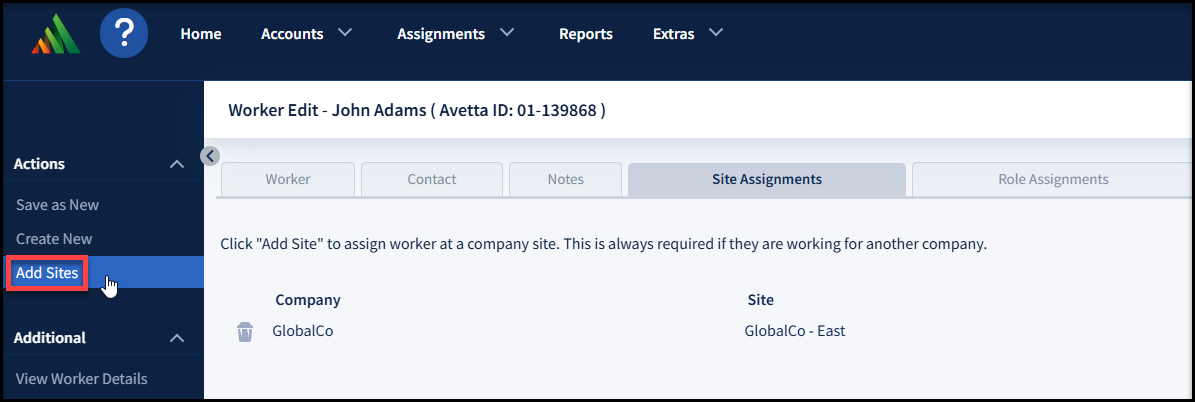
- Search and select the desired site(s)/role(s).
- Click Use Selected.
- Once assigned, the site or role will populate in the "Site Assignments/Role Assignments" tab.
- To remove a site or role, click the trash can
 icon next to the site/role name you want to remove.
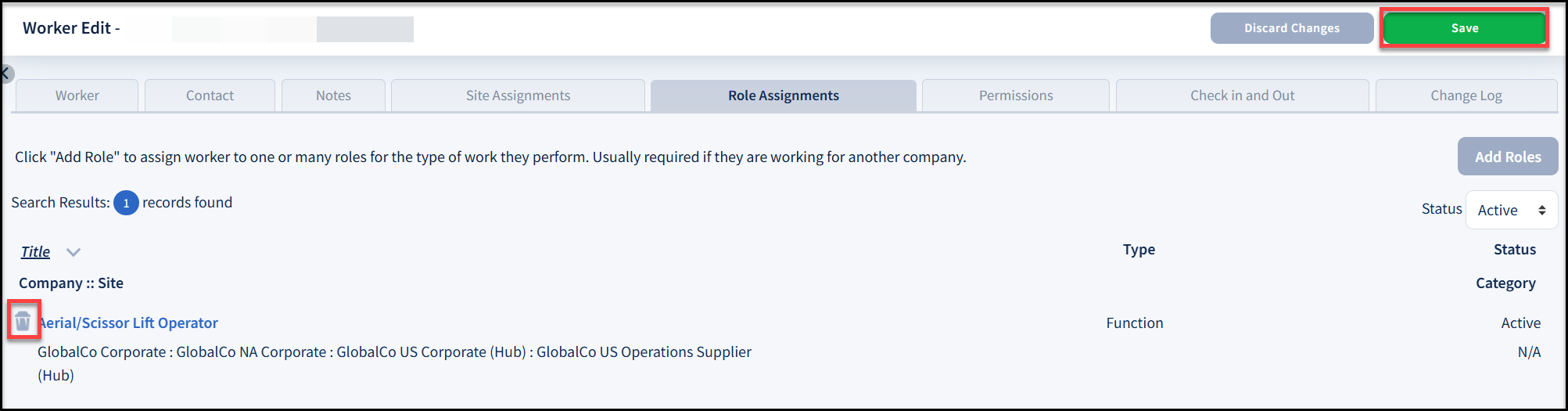
- Click Save.
From the "Dashboard Connection Report" page
- Click Home
- Locate the "Sites" widget
- Select the desired site
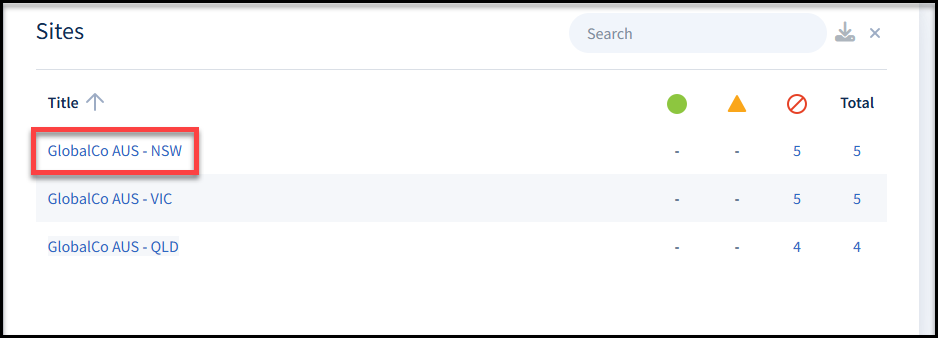
- Locate desired role from the list of roles
- Click the plus (+) icon next to the role
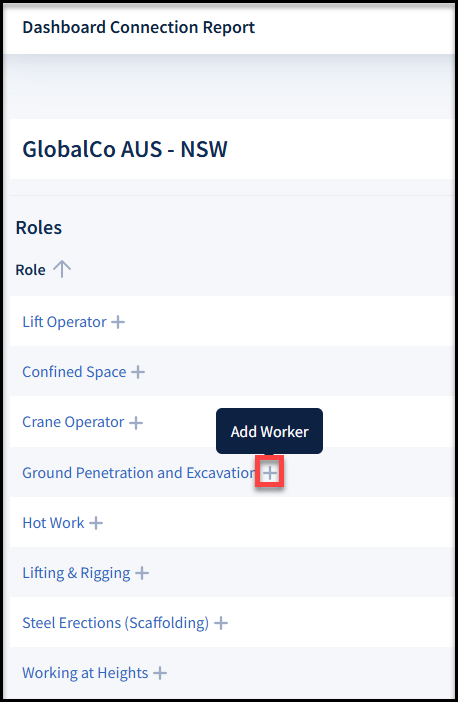
- This takes you to the Bulk Role Assignments page
BACK TO TOP