Article Contents:
Introduction
Applying Variances
Managing Existing Variances
Reports
Duplicate Variance Detection
Introduction
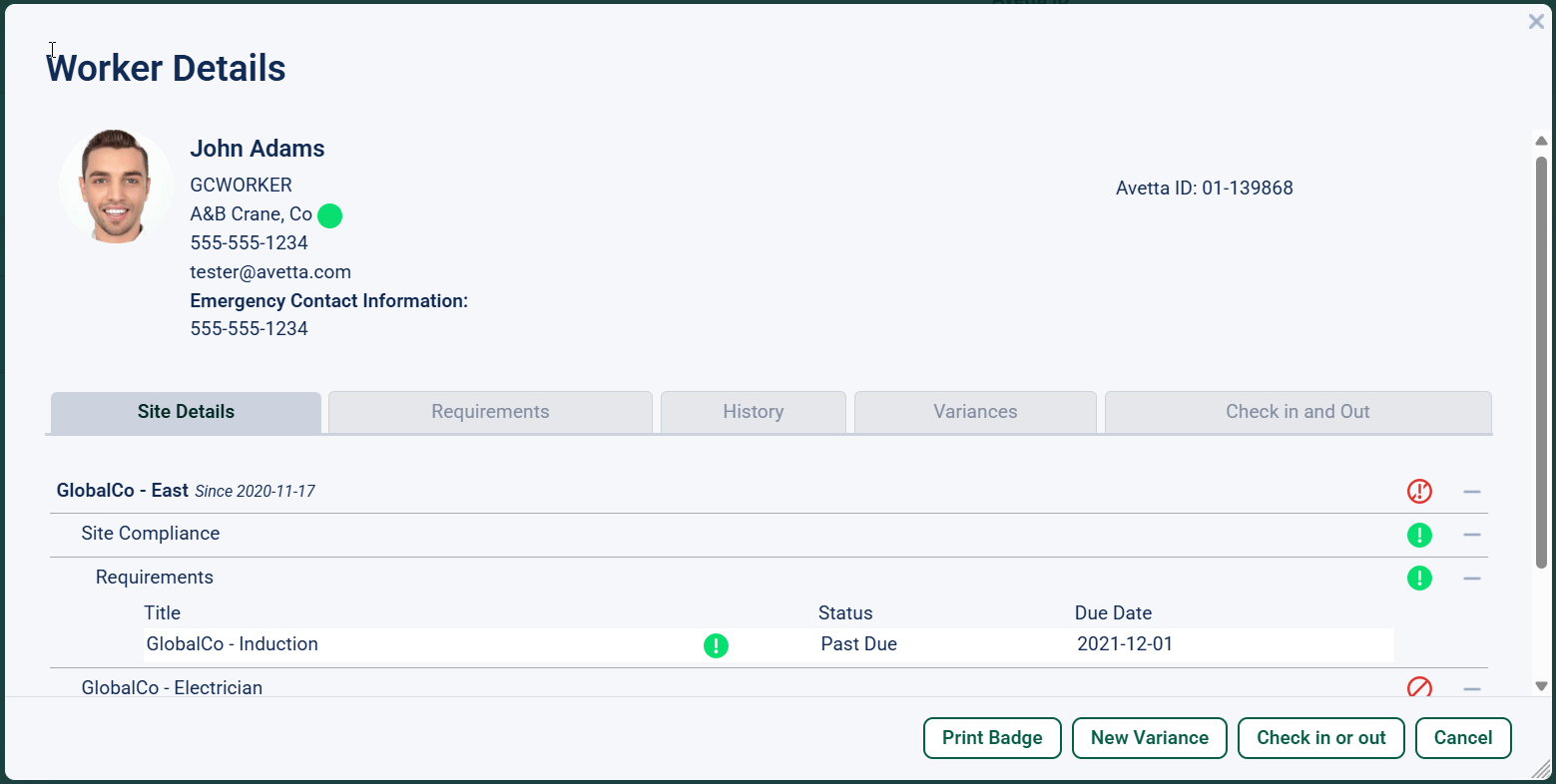
Worker Management variances are used to temporarily override a Worker's compliance status for a specific requirement, site or role. Variances can be used to address unique situations, such as granting temporary exceptions to site access or role qualifications. Variances can help manage site access restrictions and ensure Workers are compliant with site-specific requirements. When a variance is applied, a forced status icon shows when viewing the applicable requirement(s).
Applying Variances
Variances are applied to Worker Requirements, Sites or Roles. Once applied, the requirement(s) will not show in the Worker's Requirements To Do List until the variance expires. Here's how to apply a variance:
- Search for the desired Worker in the search bar.
- Click the three horizontal dots
 next to the Worker results.
- Click Variances.
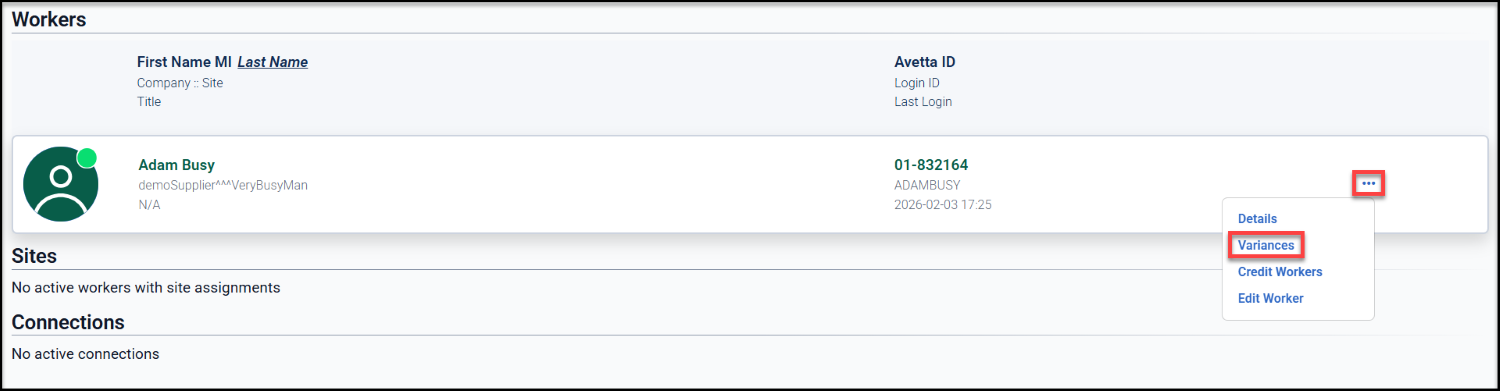
- Select New Variance.
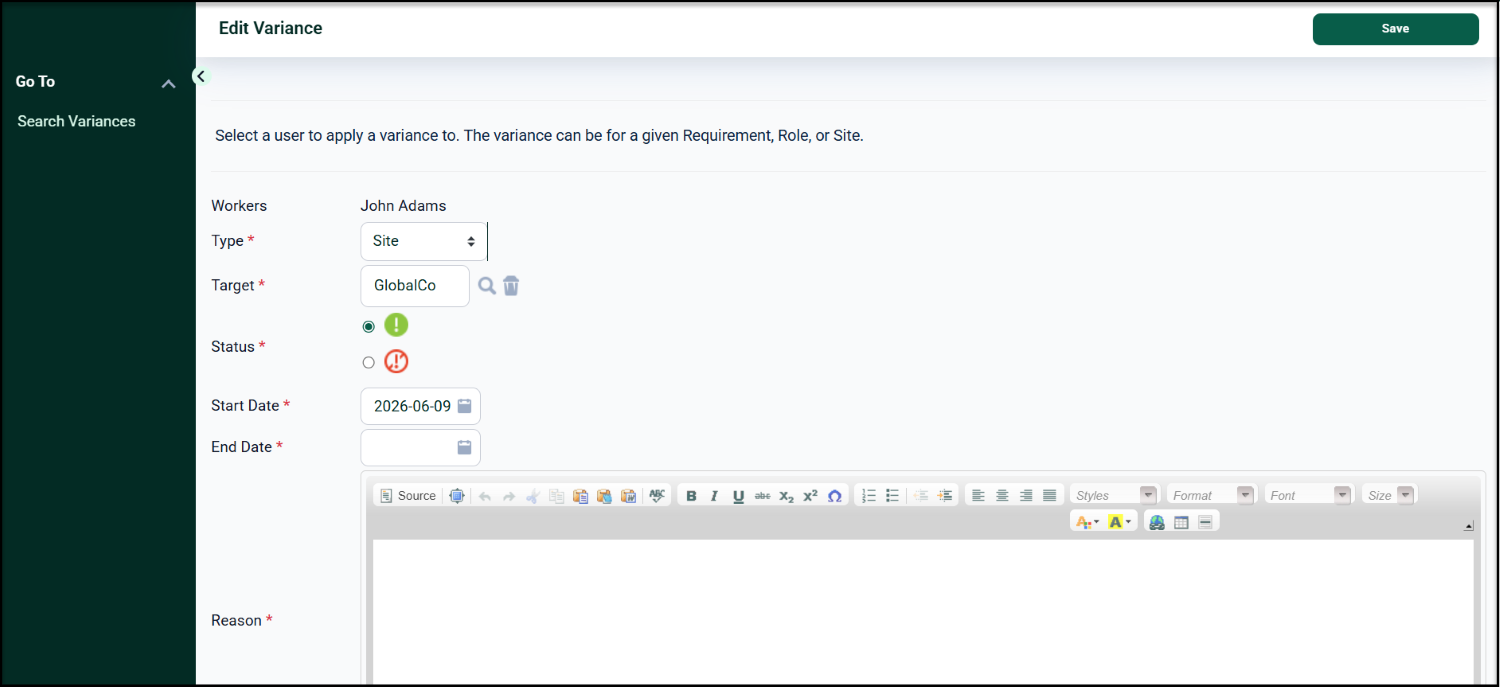
- In the "Edit Variance" window, fill out the following fields:
- Type: Requirement, Role or Site
- Target: The requirement, role, or site for which a variance is being given
- Status: Forced Green or Forced Red
- Start Date
- End Date
- Enter reason for applying the Variance.
- Upload any applicable file(s) by clicking the file icon
 .
- If a document contains sensitive information, mark the "Secure" checkbox so that only users with the "View Secure Documents" permission can view the file.
- Supplier Admins and Workers can only see documents that are not marked "Secure".
- Select Save along the top of the window.
Note: Unlike Connect Variances, there is no review process for Worker variances.
Managing Existing Variances
All variances you create will be stored in Worker Management so you can see any variances that have been applied in the past or modify a current variance. To view a list of all variances:
- Click Accounts.
- Select Variances.
- Search and select the desired variance to see additional details.
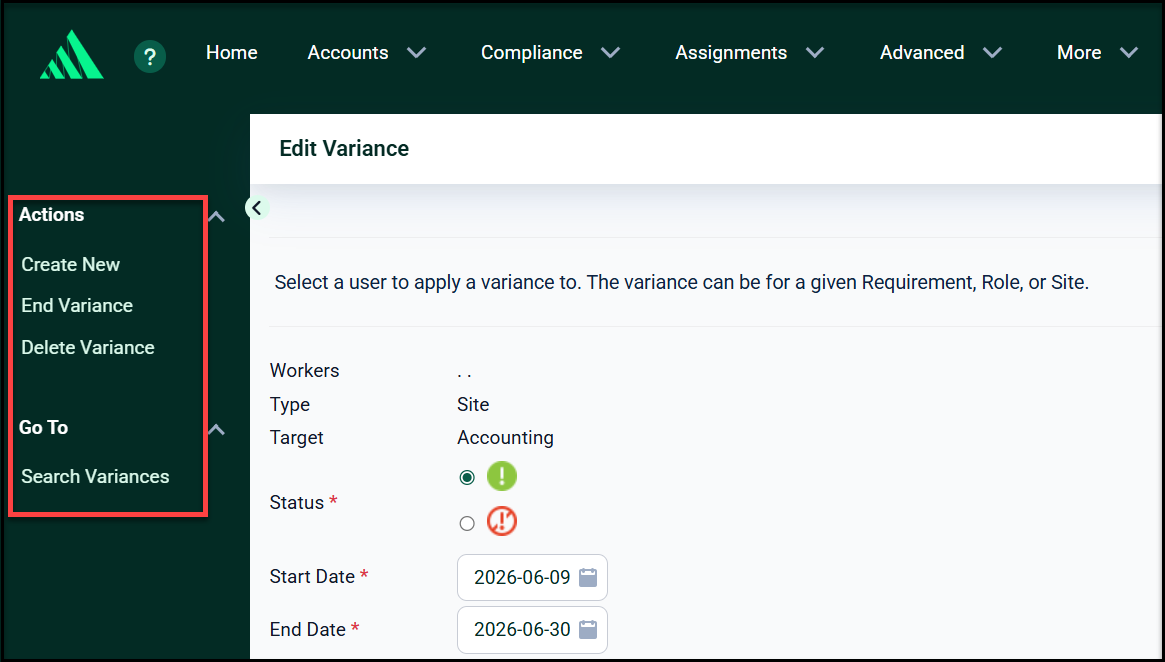
In the "Manage Variances" section, you will see a side navigation menu allowing you to:
- Create New
- End Variance
- Delete Variance
- Search Variances
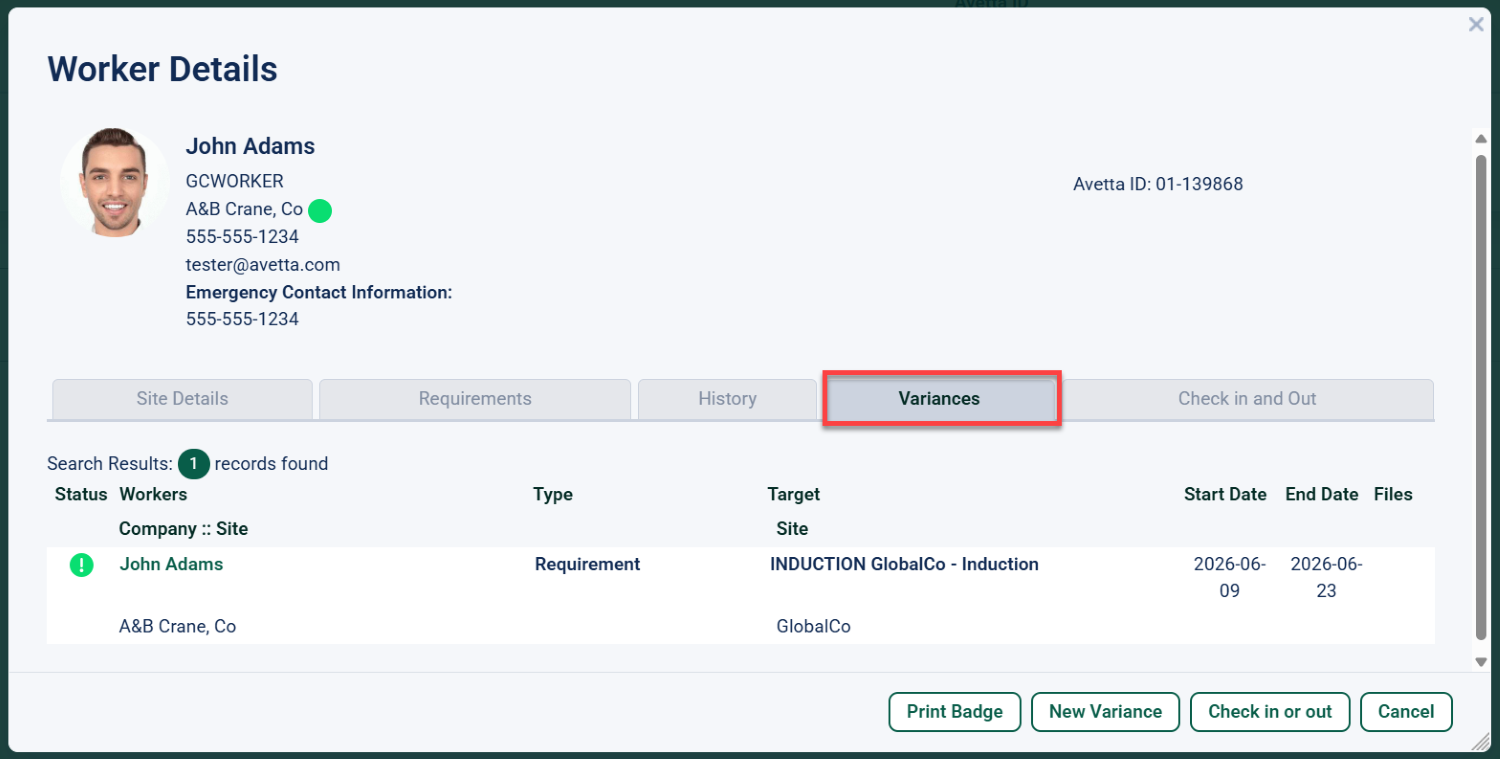
Note: You can also view variance details for a specific Worker by clicking on the Worker's name and selecting the desired variance from the "Variances" tab.
Reports
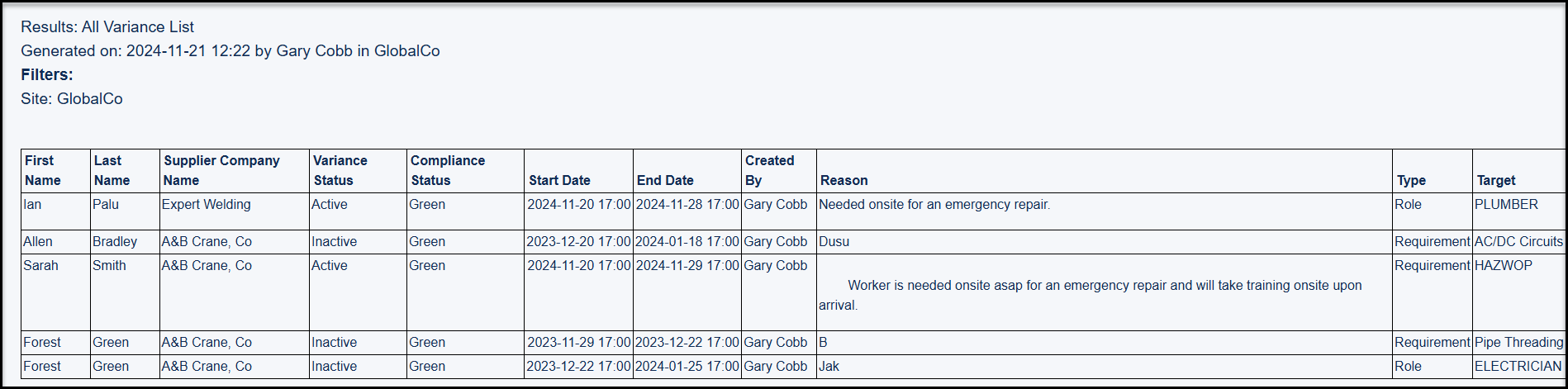
You can run the All Variance List report to view all active and inactive variances for a site or the entire company. Here's how:
- Click Reports
- Select the All Variance List report
- Select desired Site
- Select desired Date Range
- Select desired Variance Status of All, Active, or Inactive
- Select desired Compliance Status of All, Red, or Green
- Choose desired Output for the report.
Duplicate Variance Detection
Worker Management's Duplicate Variance Detection feature helps prevent Workers with restricted access from being let onto a work site. This functionality alerts you to possible duplicate users when one of those Workers already has an active red variance assigned to each site. Whenever a Worker is added to a new site with the "Check for Duplicate Variance on Connection" setting enabled, the Worker name is compared to existing site users, and the Client is alerted to possible existing, duplicate Workers with an active red variance applied to their status. This prevents Workers who have been restricted from the site from accidentally being given access to the site under a slightly different name.
How it Works
The detection of duplicates is based on a Soundex algorithm, which matches names that sound similar. The default setting is 90% accuracy and can be adjusted according to Client needs. Use the 'Duplicate User Search' report to test different levels of accuracy.
Using Duplicate Variance Detection
- Work with your Client representative to get Duplicate Variance Detection added to your account.
- Log in to Worker Management.
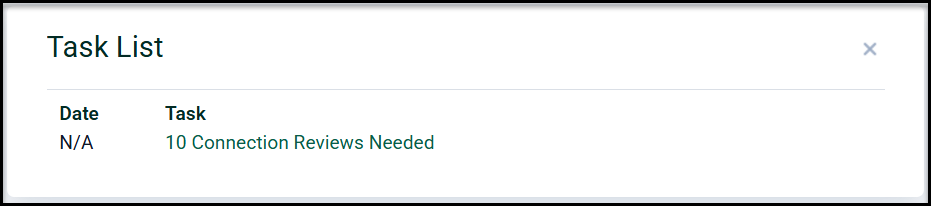
- Navigate to the Task List widget.
- Click the Connection Reviews Needed task. These tasks trigger whenever a Supplier assigns a site to a possible duplicate for a Worker with an active red variance (Clients with any pending Connection Reviews are also sent email notifications to alert them to this).
- Look for any Workers listed with a Duplicate Variance Connection Review Type and select the checkbox next to their name (you can select more than one name at a time).
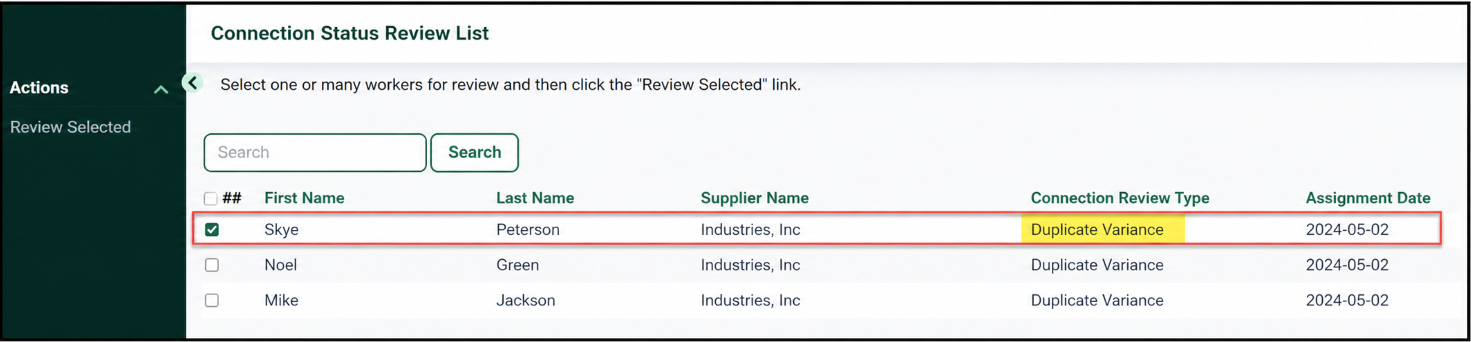
- Click Review Selected from the side "Actions" menu.
- View the "Possible Duplicate" user information to determine if they should be approved or denied.
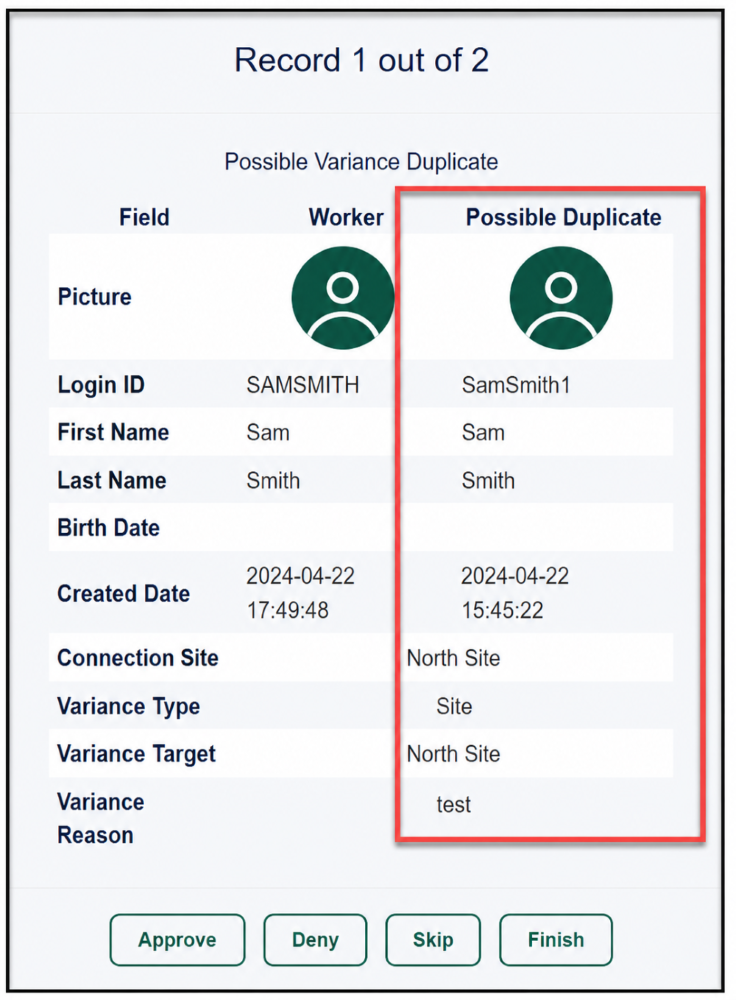
- Select Approve or Deny to complete the task.
- If you selected more than one user to review, you will be taken to the next user, or you can click Skip to go to the next user without reviewing the user you are currently on.
Note: If a Worker connection is denied, the site is removed from the Worker's Site Assignments tab and both the Worker and Supplier Admin are sent an email notification alerting them to this. If the Supplier Admin tries to add the connection again, a red banner alert lets them know the site assignment has been denied.