Article Contents:
What are Favorites?How to Create FavoritesHow to Add to FavoritesHow to Edit FavoritesHow to Delete Favorites------------------------------------------------------------------------------------------------------------------------------------------------------
What are Favorites?
Use Favorites to create frequently used groups of items (Workers, requirements, roles, etc) accessible in other areas of the platform. Using Favorites saves time by allowing you to select a Favorites group of pre-selected items instead of needing to re-select these items each time. Favorites groups can be modified and deleted. The Favorites icon is a star shape, and it indicates that a favorites group is available for selection. You can create one or more lists of Favorites for:
- Worker
- Requirement
- Class
- Test
- Theme
- MOC
- Routing Pattern
- Role
- Location
- Equipment
- Instructor
How to Create Favorites
- Click Favorites.
-
Click Create New from the "Actions" on the left.
- Enter a title.
- Scope – Select the area where this list of favorites is available in the "Scope" drop-down.
- Select the "Types of Items" that can be included in the list.
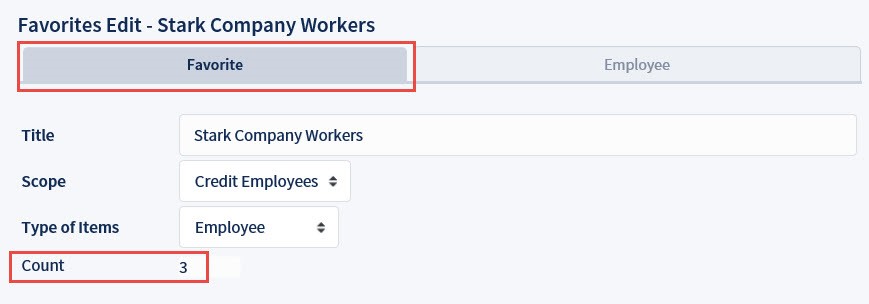
- The software populates the "Count" field based on the number of items added to the Favorites group.
- Click Save.
- A new tab will appear displaying the Favorites title and additional actions will display in the left menu.
- Click Add Items.
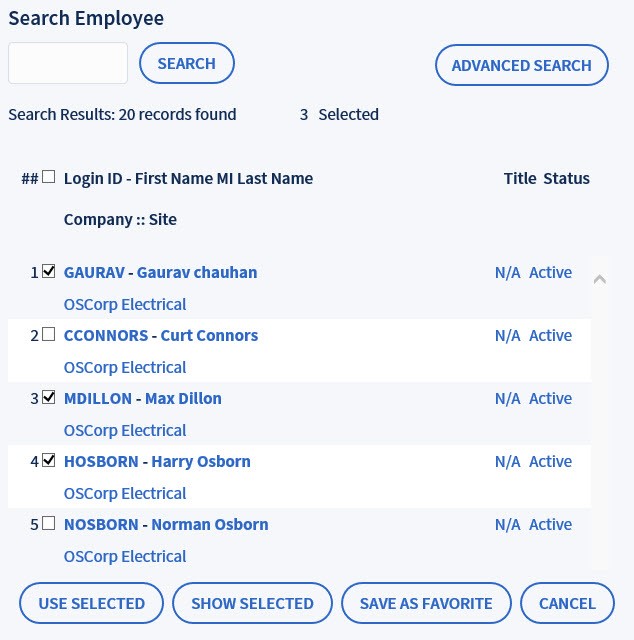
- A pop-up will appear with relevant items to add to your Favorites group. Select the desired items to be added and click Use Selected.
- The selected items should now show within your Favorites group.
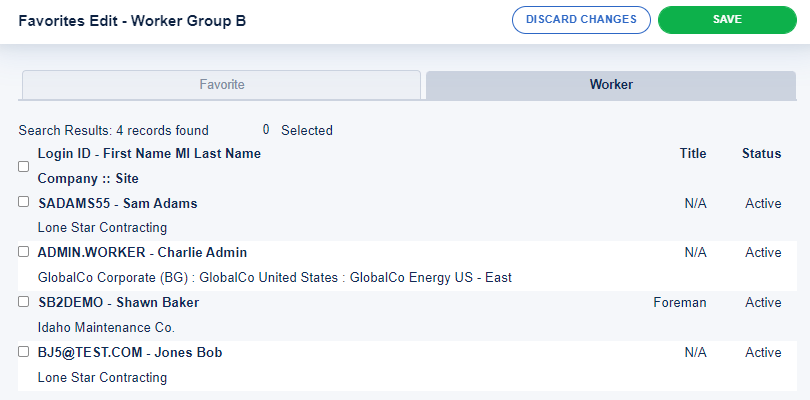
- Check the details to make sure they are correct and then click Save again.
How to Add to Favorites
- Click Favorites.
- Click the desired Favorites group from the list.
- Click on the appropriate tab.
- Click Add Items from the actions in the left menu.
- A pop-up will appear with relevant items to add to your Favorites group. Select the desired items to be added and click Use Selected.
- Click the Favorite tab and notice the Count field has updated.
- Click Save.
- Click Search Favorites from the left menu to return to your list of Favorites.
How to Edit Favorites
- Click Favorites.
- Click the title of the Favorite to be modified.
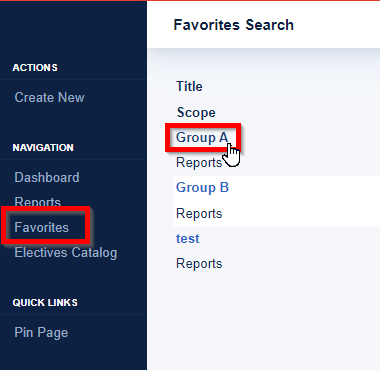
- The Favorites Edit window opens. Click the item tab (in the example below the Worker tab).
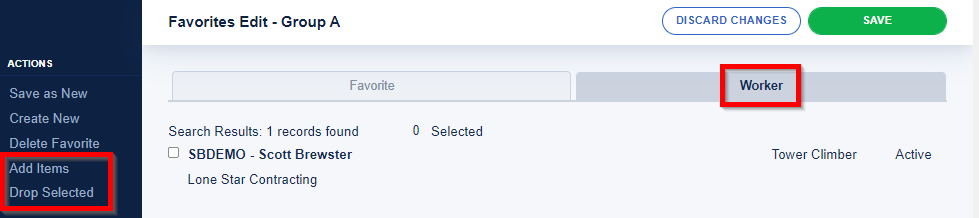
- Use the Add Items and Drop Selected from the left Action menu to edit the favorites.
How to Delete Favorites
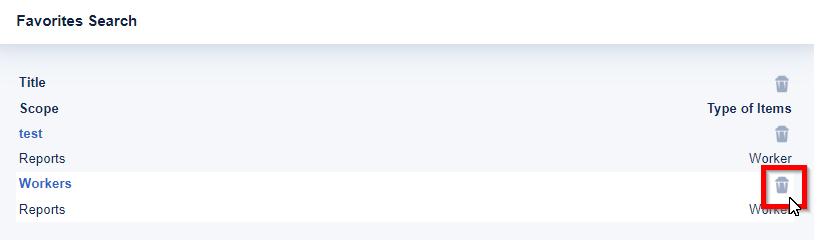
- Click Favorites.
- Click the trash can icon next to the favorites group you wish to delete.