Article Contents
Worker Management Widgets
Worker Management widgets are individual cards displaying specific information on your "Home" page. Widgets display information based on your user type, permissions, company configuration, and enabled features. Some widgets appear automatically, while others can be added or removed from your Dashboard. This article walks you through how to manage your widgets and goes over three specific ones in more detail to show how you can drill down for further information.
- Click and drag the widgets to rearrange their order on your Dashboard.
- Any text or numbers showing blue indicate they can be clicked on to view additional information about those items.
- You can continue to drill down the information in the report to see more and more specific information related to your selections.
- Some widgets will show a download
 icon, indicating the information can be downloaded into a csv file.
Managing Widgets
To add or remove widgets:
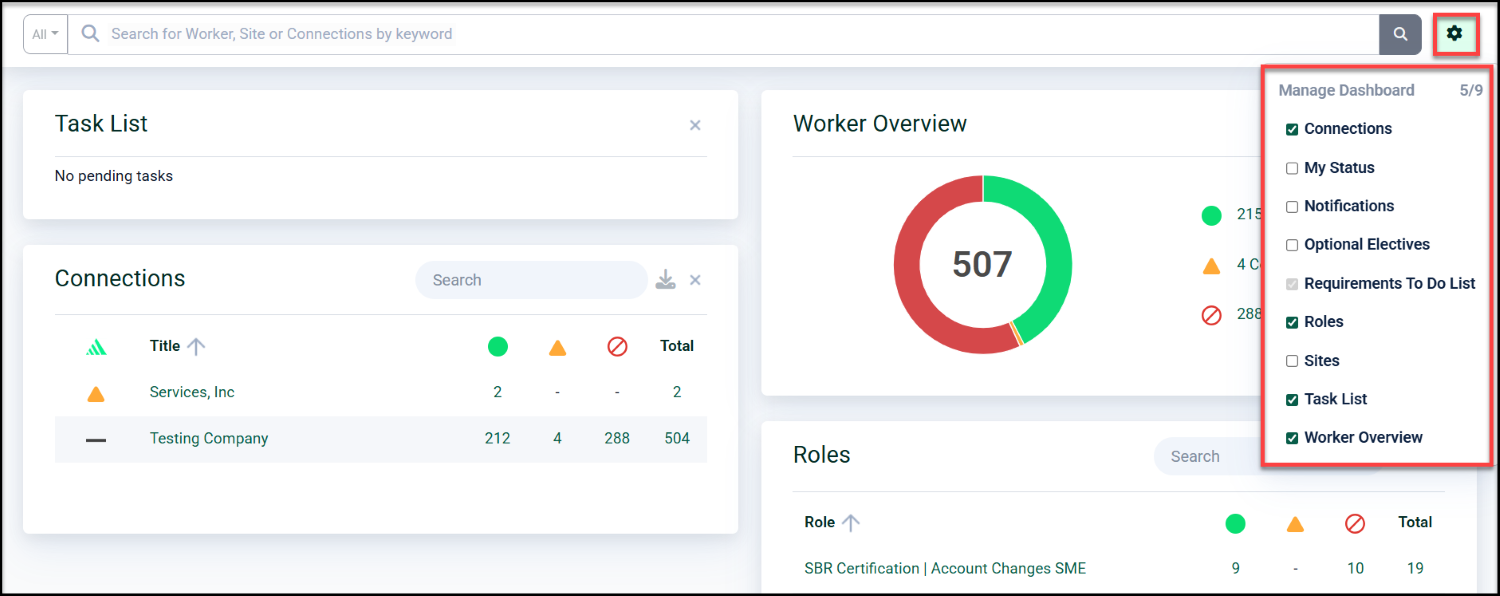
- Click the gear icon to the right of the search bar.
- Click the check box next to all desired widgets to add them to your Dashboard. Unchecking a box removes the widget.
- The "Requirements To Do List" is a required widget that cannot be removed which is why the checkbox shows grayed out.
Available Widgets
Depending on your user type, permissions, company configuration, and enabled features, the Dashboard may include:
- Check In/Check Out
- Connections
- Notifications
- Optional Electives
- Requirements To Do List
- Roles
- Sites
- Subcontractor Connections
- Task List
- Worker Overview
Additional widgets may be available when related features are enabled. Some widgets may not appear when there is no content to display.
Connections Widget
The Connections widget displays Suppliers connected with your company and their compliance status within Connect, along with a breakdown of their Worker's compliance status.
NOTE: The compliance color icon that shows to the left of the Supplier's name pertains to the Supplier's progress completing forms, audits and insurance tasks in Connect, and is not related to the compliance status of individual Workers within Worker Management, which shows in the columns to the right.
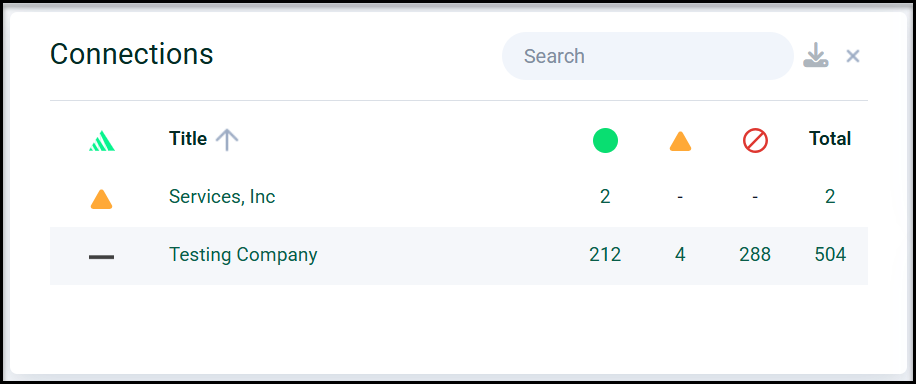
- Clicking a specific Supplier connection shows you:
- All sites and roles the Supplier is connected with.
- The number of Workers who are compliant/conditional/noncompliant with your requirements across all sites and roles
- All Workers connected to the Supplier.
- Clicking a specific site or role shows you all Workers assigned to that site/role along with their compliance status.
- Clicking on a Worker name will allow you to see and manage the Worker's Site Details, Requirements, History, Variances and Check in and Out Details.
Roles Widget
The Roles widget displays all job roles and sub-roles, as described by a Client company and configured by Avetta, along with a breakdown of each Worker's compliance status for each role.
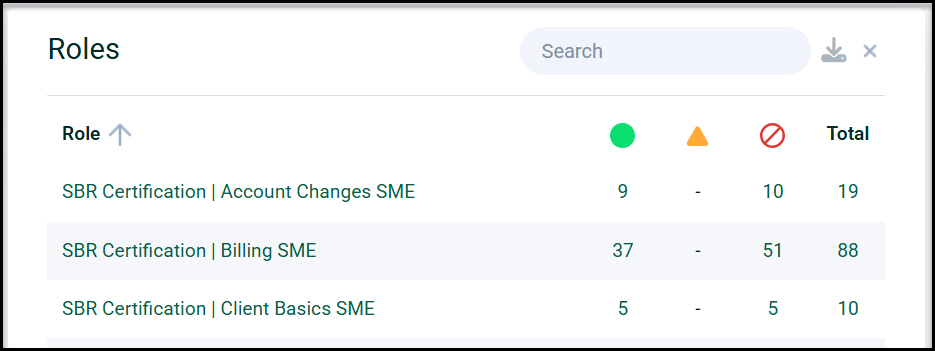
- Clicking a specific role shows you:
- All your connected Suppliers assigned to the role
- All sites the role is associated with.
- All Workers associated with the role.
- Clicking a specific Supplier connection or site shows you all Workers connected to that connection/site as well as assigned to that role.
- Clicking on a Worker name will allow you to see and manage the Worker's Site Details, Requirements, History, Variances and Check in and Out Details.
Sites Widget
The Sites widget displays your current company hierarchy breakdown, with the number of Workers assigned to your company site, and their status of compliant, conditionally compliant, or non compliant to the right.
Companies are listed in alphabetical order for ease of locating a company you wish to review.
- Clicking a specific site shows you:
- All your connected Suppliers assigned to the site
- All roles assigned to the site.
- All Workers associated with the site.
- Clicking a specific Supplier connection or role shows you all Workers connected to that connection/role as well as assigned to that site.
- Clicking on a Worker name will allow you to see and manage the Worker's Site Details, Requirements, History, Variances and Check in and Out Details.
Worker Overview Widget
The Worker Overview widget shows you a breakdown of all your connected Workers and their associated compliance status in Worker Management.
- Clicking on one of the statuses will take you to a page that shows you more details about how many Workers are compliant/conditional/noncompliant for specific sites and roles.
- From here, you can click on a site/role to see the list of Workers.
- Clicking on a Worker name will allow you to see and manage the Worker's Site Details, Requirements, History, Variances and Check in and Out Details.
BACK TO TOP