Article Contents:
----------------------------------------------------------------------------------------------
Summary
Supplier and Client Admins can award credits to a Worker who shows proof of completing a requirement that isn’t showing complete within Worker Management. In addition to crediting single courses/requirements, Client and Supplier admins can also define special sets of courses known as Equivalencies and Opt-In Tracks. These courses can be associated with specific user Roles or with individual users. Equivalencies and Opt-In Tracks offer admins flexible and efficient ways to manage training and compliance requirements within their organization and provides Workers with options to choose how they complete their assigned tasks. This article outlines the key functionalities, crediting process, and worker experience for both Equivalencies and Opt-In Tracks.
Definitions
Equivalency
Two or more courses that satisfy the same requirement. Workers assigned an equivalency can choose which item to take. Equivalencies have their own recurrence.
- Example: Clients who offer three versions of a course in different languages can use Equivalencies to simplify the requirement. An Equivalency can be assigned to a user just like any other course, except the user can choose which course to take.
Opt-In Track
A group of related courses and/or Equivalencies where the learner must complete a specific number out of the total number of courses included to receive credit for the requirement.
- Follows the recurrence of the requirements included.
- Is a combination of an equivalency and a regular Track.
- Is listed on the Worker’s To Do List as a single item that requires completion.
- When the Worker clicks on the item, they see what requirements are available to complete the assignment.
- Example: Clients who require Workers to take at least two out of a total of three courses before being considered trained to come onsite can use Opt-In Tracks can let the Worker choose which of the three courses they want to take.
Permissions
The following permissions are needed to manage Opt-In Tracks and Equivalencies:
- The system admin permission OR the "Requirements", "Equivalencies", and "Tracks" permissions allow creation of Equivalencies and Opt-In Tracks.
- The "Workers" permission allows assignment of sites and roles with Equivalencies or Opt-In Tracks associated to them.
- This is generally for Supplier Admins assigning on behalf of a Client.
Equivalencies
Setup
Opt-In Tracks are created to hold multiple requirements that allow different retake periods and are either optional or mandatory or both depending on the setting selected. Opt-In Tracks will be assigned to the roles once assigning them to the hierarchy. Opt-In Tracks can also be attached to the hierarchy as individual requirements, which will apply to all the workers. Here's how internal users set up an Opt-In Track:
- Courses must exist in the system before being added to an Equivalency.
- Equivalencies appear in the Electives Catalog.
- Equivalencies can be set to expire on a single recurrence pattern (such as yearly) or only be required one time.
- The following expiration options can be used:
- Option 1: Expiration is set when you want the Equivalency to be due the first time it is assigned to a user.
- Option 2: A month and day when you want the Equivalency to be due for the year in which it is assigned can be selected.
- Example: If the Equivalency is set to June 14 and it is assigned April 3, it will be due June 14 of the current year. If it is assigned October 22, it will be due June 14 of the current year and will be overdue.
- Option 3: Like option 2, except the assigned date will be the next occurrence of that date.
- Example: If the Equivalency is set to June 14 and assigned on April 3, it will be due June 14 of the current year, the same as option 2. However, if it is assigned on October 22, it will be due June 14 of next year because June 14 has already passed.
How Workers get Credit
A Worker can get credit for an Equivalency by:
- Taking an online test (a pre-test or final exam).
- Having an instructor give credit for attending a class.
- Having administrators give credit manually.
Admin Capabilities
Administrators with permission to manage Equivalencies can:
- Create, modify, and delete Equivalencies.
- Assign or remove courses from the Equivalency.
- See where the equivalency is used.
- Assign and un-assign workers (with the appropriate permission).
Opt-In Tracks
Setup
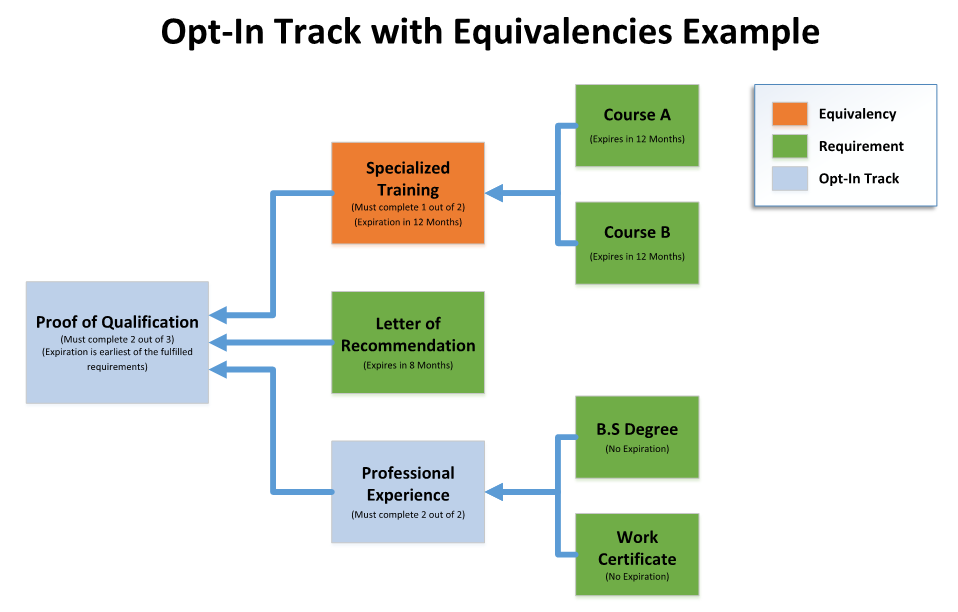
- The Due Date associated with an Opt-In Track will be for the oldest or most overdue course within the Opt-In Track.
- Opt-In Tracks and Equivalencies can be combined within the same requirement.
- In cases where an Equivalency is required, the configured Equivalency due date is applied regardless of the expiration date of the document provided.
- In the case of Opt-In Tracks, the soonest expiration date overrides any other expiration dates.
Admin Capabilities
Admins accessing Opt-In Tracks can:
- Add, delete, and modify Opt-In Tracks.
- Add and / or drop the courses and Equivalencies in Opt-In Tracks.
- Set the number of courses and / or Equivalencies required to complete the Opt-In Track.
Crediting Workers
Supplier Admins and Clients can award “credits” to a Worker who shows proof of completing a requirement that isn’t showing complete within Worker Management. If a Worker provides evidence the requirement is completed, the Admin can manually mark the requirement complete in Worker Management. Credits are awarded by Worker or Requirement.
Crediting by Worker
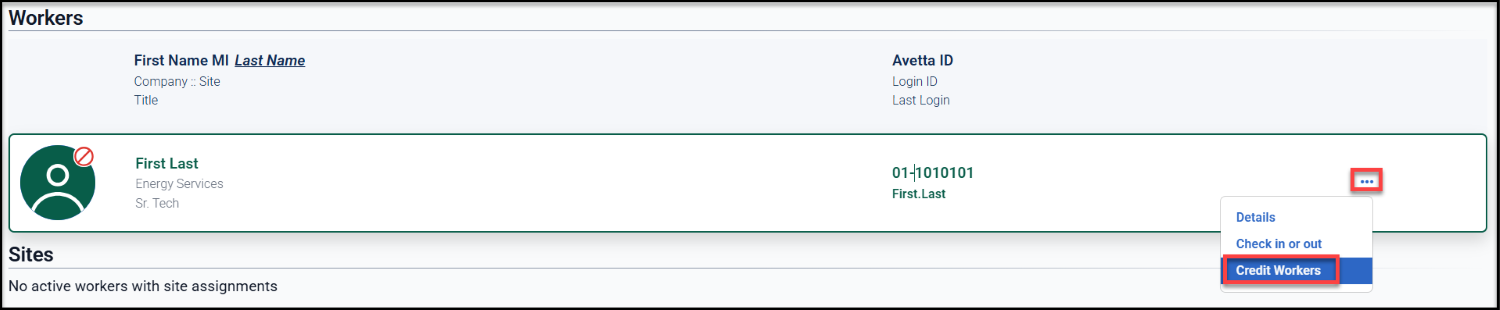
- Search for the desired Worker in the Universal Search bar.
- Click the three horizontal dots
 .
- Click Credit Workers.
- Search and select desired item to credit.
- Search and select desired requirement.
- Note: Admins cannot credit the Opt-In Track or Equivalency directly.
- Click Use Selected.
- Enter the completion date.
- Upload a document to the task (if applicable) by clicking the file
 icon.
- Select desired action:
- SEND TO REVIEW allows the Client or Avetta to review the requirement.
- APPROVE allows you to credit the requirement for that Worker.
- FINISH will skip the requirement.
Crediting by Requirement
- Click Accounts.
- Click Credit by Requirement.
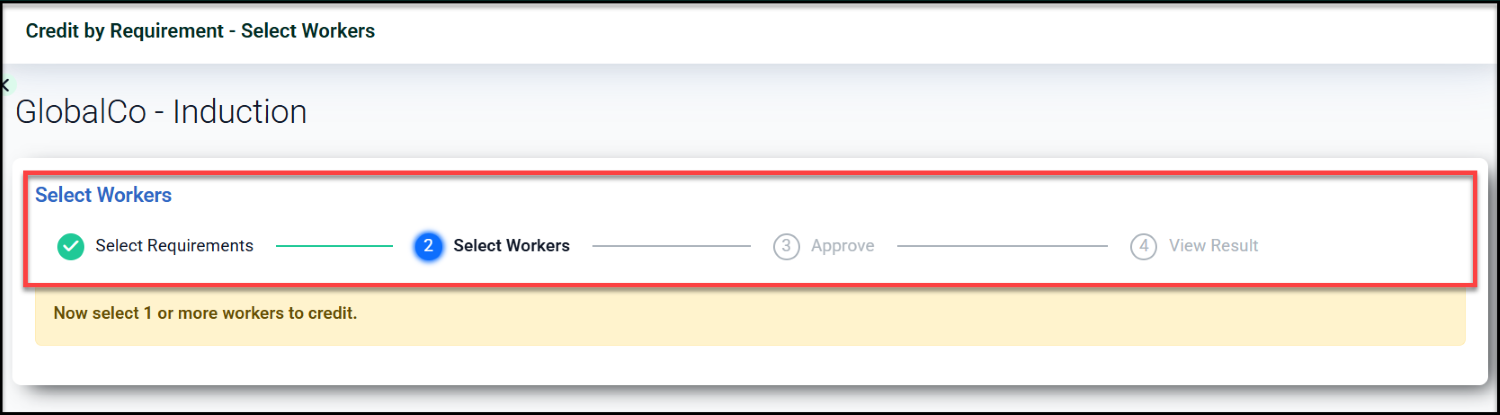
- Note: When crediting Workers by requirement, a stepper will show along the top of the page with instructions. Click on a step to move to that page. Completed steps will show a green checkmark.
- Search and select desired item to credit.
- Search and select desired requirement.
- Note: Admins cannot credit the Opt-In Track or Equivalency directly.
- Search and select the desired Workers.
- Click Use Selected.
- Select how you wish to credit the selected Workers:
- Credit individually: Apply different dates and documents to the selected Workers.
- Credit in bulk: Apply the same date and document to all selected Workers.
- Fill out required information, such as the class date.
- Upload a document to the task (if applicable).
- Select desired action:
- SEND TO REVIEW allows the Client or Avetta to review the requirement.
- APPROVE allows you to credit the requirement for that Worker.
- FINISH will skip the requirement.
Worker Experience
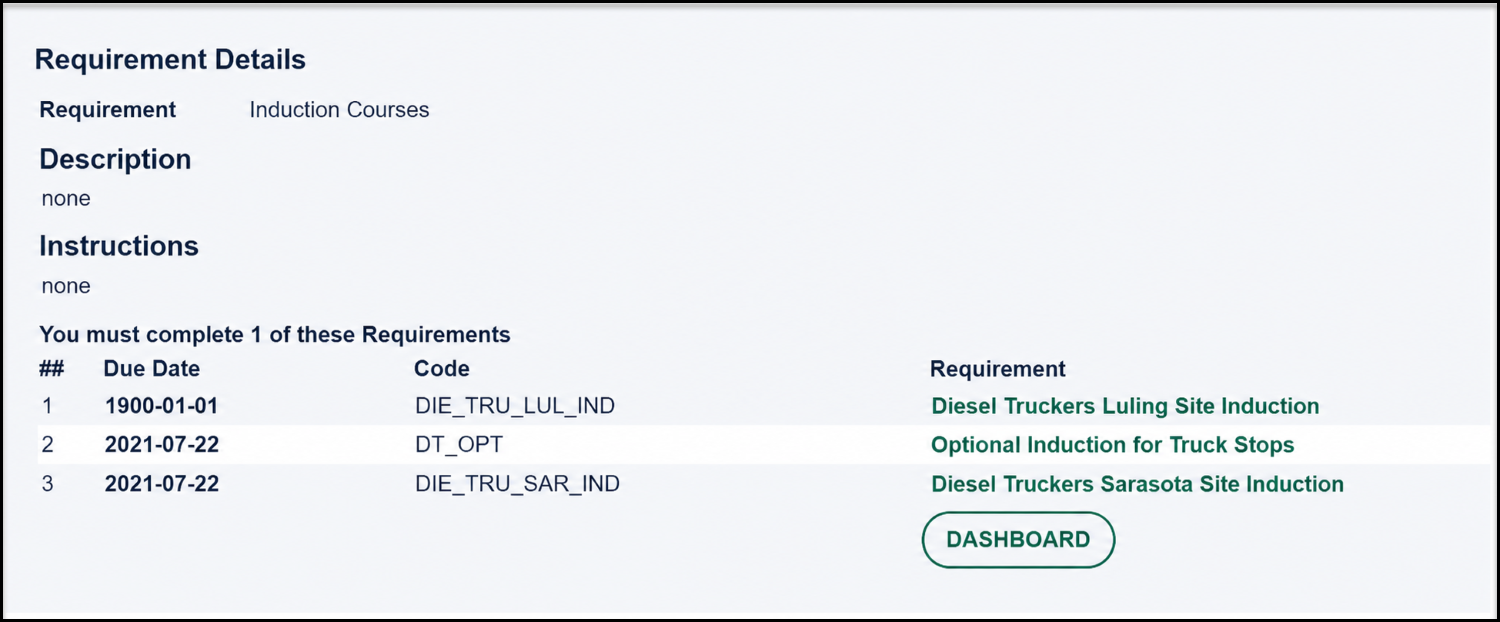
Here’s how Workers complete an Opt-In Track or Equivalency:
- Select the desired option from the “Requirement To Do List.”
- Select the desired requirement.
- Follow all instructions to complete the requirement.
Best Practices
When to use Equivalencies
- In scenarios where a company offers the same course in two different forms (for example two different languages) so the learner can choose which course to take.
- When the recurrence is the same for all included requirements.
When to use Opt-In Tracks
- In scenarios where a company has many training courses (for example, ten) and to qualify, a user must take a specific number out of the total number (for example, six out of ten courses must be completed).
- When there is variation in recurrence of requirements.
Frequently Asked Questions
Equivalencies
- Can two tracks be made equivalent?
- No. There must be two or more courses to be made equivalent.
- If a user is assigned an Equivalency with two courses in it, and one of the courses is also assigned by itself, what does the user see?
- The user sees one entry for the course and one entry for the Equivalency. When one of them is completed, the other will also be satisfied and no longer show in the To Do List.
Opt-In Tracks
- Can two Opt-In tracks be made equivalent?
- No. There must be two or more courses to be made equivalent.
- If I have 8 courses where 4 must be taken but from the remaining 4 only 2 are required, what is the best way to set this up?
- In this case, you would want to create a track which contains an Opt-In Track. The track will contain the 4 required courses and the Opt-In Track which contains the remaining 4 courses of which only 2 are required.
- Why can’t I change the due date for an Opt-In Track?
- Like jobs and tracks, an Opt-In Track follows the Retake Months setting for the course. To calculate the due date of an Opt-In Track, the user’s schedule and history are considered. The course with the earliest due date required to satisfy the Opt-In is used as the due date for the Opt-In Track.
- How do variances for Opt-In Tracks work?
- If a requirement inside a nested Opt-In is covered by a variance, that variance satisfies the top-level opt-in track for the Worker’s site compliance. This means the Worker appears compliant at the top level as expected, reducing the need for manual checks when you manage complex Opt-In structures.
BACK TO TOP