Article Contents
What is Class Management?
Permissions
Enrolling a Single Worker
Enrolling Workers by Requirement
Worker Experience
Frequently Asked Questions (FAQs)
What is Class Management?
Class Management helps your organization manage training requirements and live training sessions in Worker Management. When one of your connected Clients enables Class Management, you can view available sessions (including their locations and times), sign your Workers up for these sessions.
Permissions
Standard Credit or Worker permissions are needed by an Admin. Access is based on Client configuration.
Enrolling a Single Worker
To enroll a single Worker for a class:
- Click Accounts.
- Select Class Enrollment by Worker.
- Search and select the desired Worker.
- You will see only Workers you have permission to manage and who currently have an eligible classroom requirement.
- Select desired requirement(s).
- Click Use Selected.
- Select a class.
- If more than one requirement was selected, click Set Next Class.
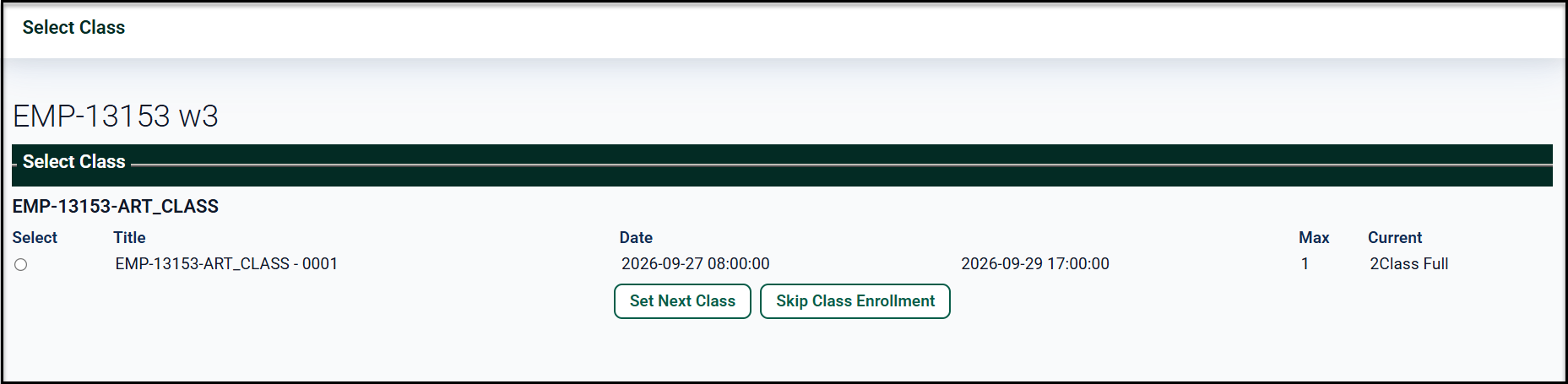
- Once all classes have been selected, click Enroll in Selected Class.
- Review the enrollment details on the confirmation page.
- Select Confirm Enrollment.
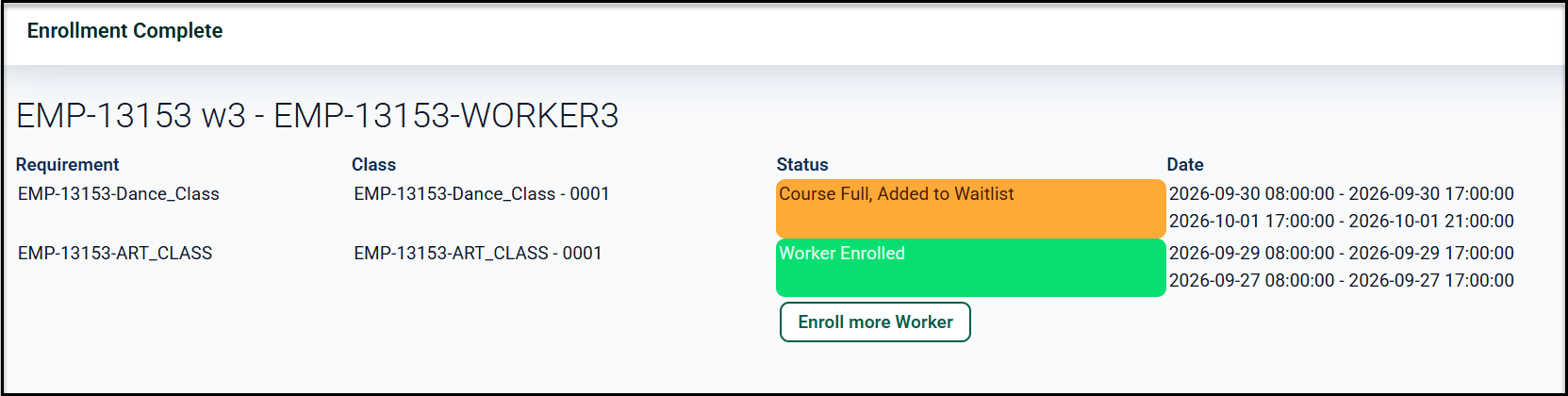
- Review the enrollment results.
- The results identify the Worker, requirement, and enrollment status.
- Select Enroll more Worker to return to the Worker list and enroll another Worker.
Enrolling Workers by Requirement
To select a classroom requirement and class first, then enroll one or more eligible Workers in that class:
- Click Accounts.
- Select Class Enrollment by Requirement.
- Search and select the desired Requirement.
- Only Register-type requirements are listed. The requirement list also shows the number of Workers who need to be enrolled.
- Select a class.
- Select desired Worker(s).
- You will see only Workers you have permission to manage and who currently have an eligible classroom requirement.
- Click Use Selected.
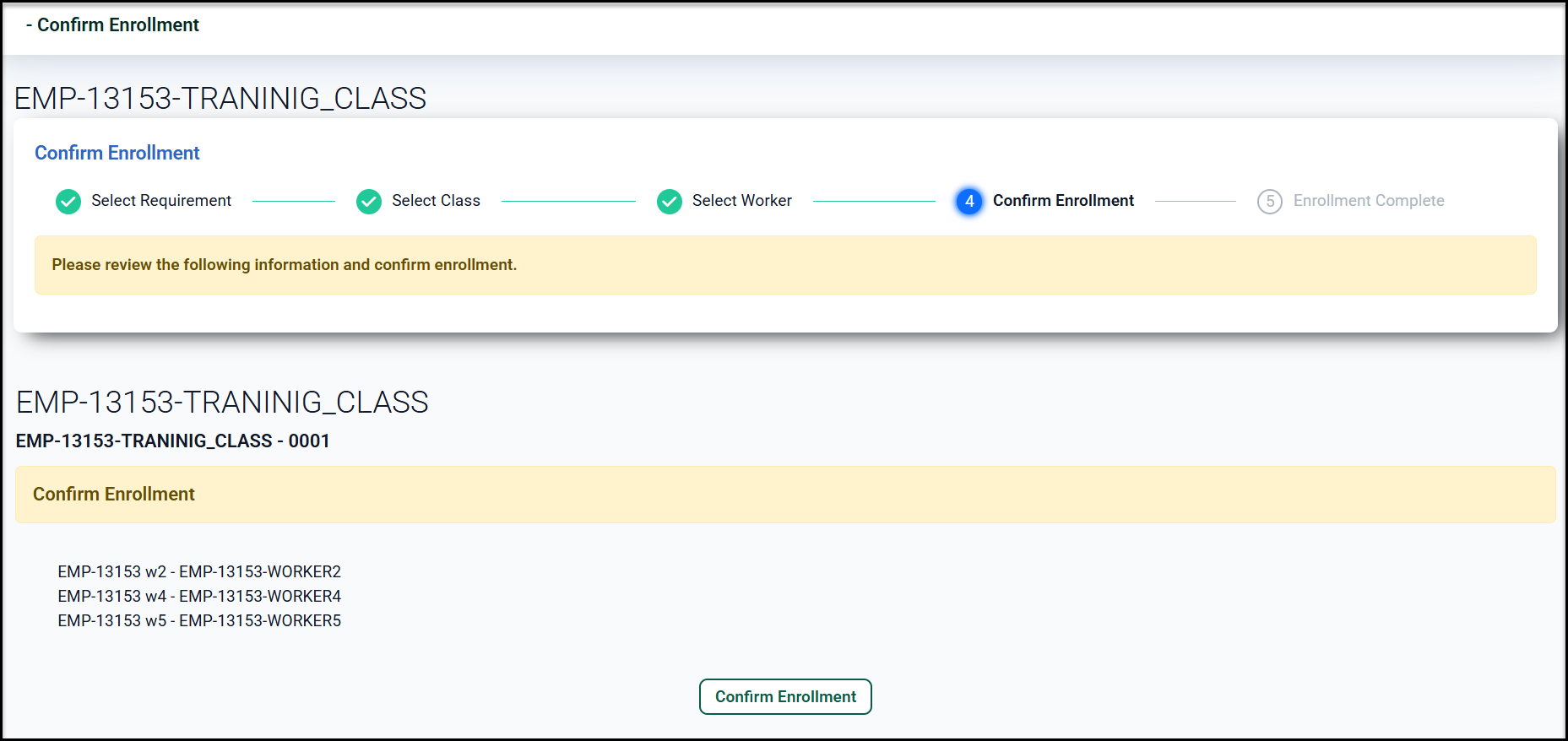
- Review the requirement, class, and selected Workers.
- Select Confirm Enrollment.
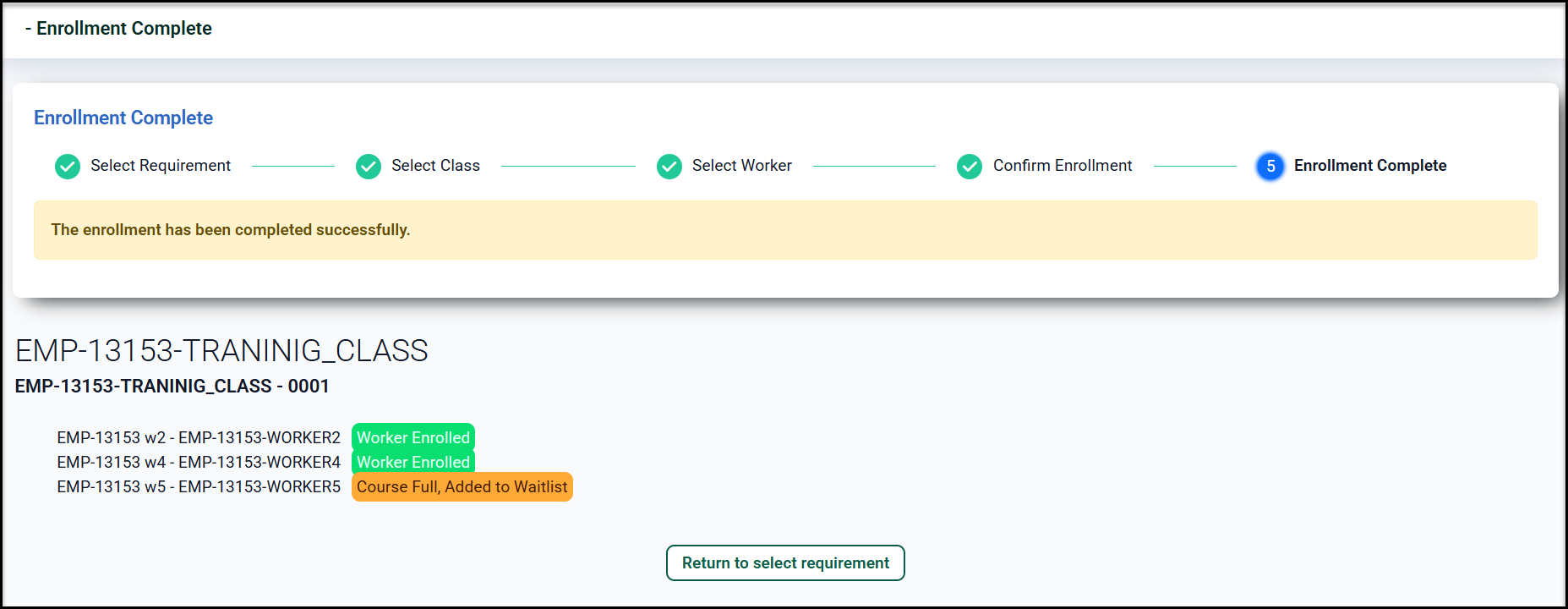
- Review the enrollment summary.
- The completion page summarizes the enrollment activity, including the number of Workers enrolled or waitlisted.
- Select Return to Select Requirement to begin another enrollment.
Worker Experience
For Workers, classes are like other requirements. The class is shown in their Requirement To Do List and can be clicked on for more details such as instructions, class description, list of available meetings and options to enroll or drop out (when enrollment is open). If a test is required, it appears in the Requirement To Do List once all required class meetings have been attended.
Viewing Classes
- In the Requirement To Do List widget, click on the requirement.
- This shows the requirement details and any associated classes.
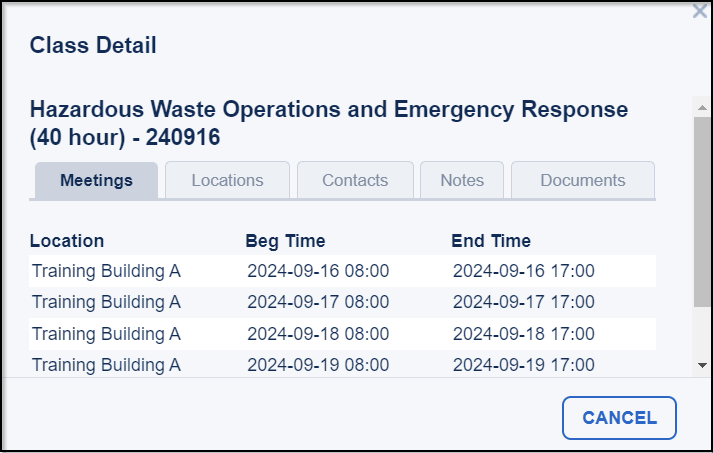
- Click on the desired class to see:
- Beginning and end dates and times of meetings
- Meeting locations
- Instructor contact information
- Any notes provided by the Admin or Scheduler of the meeting
- Class documents
Enrolling in a Class
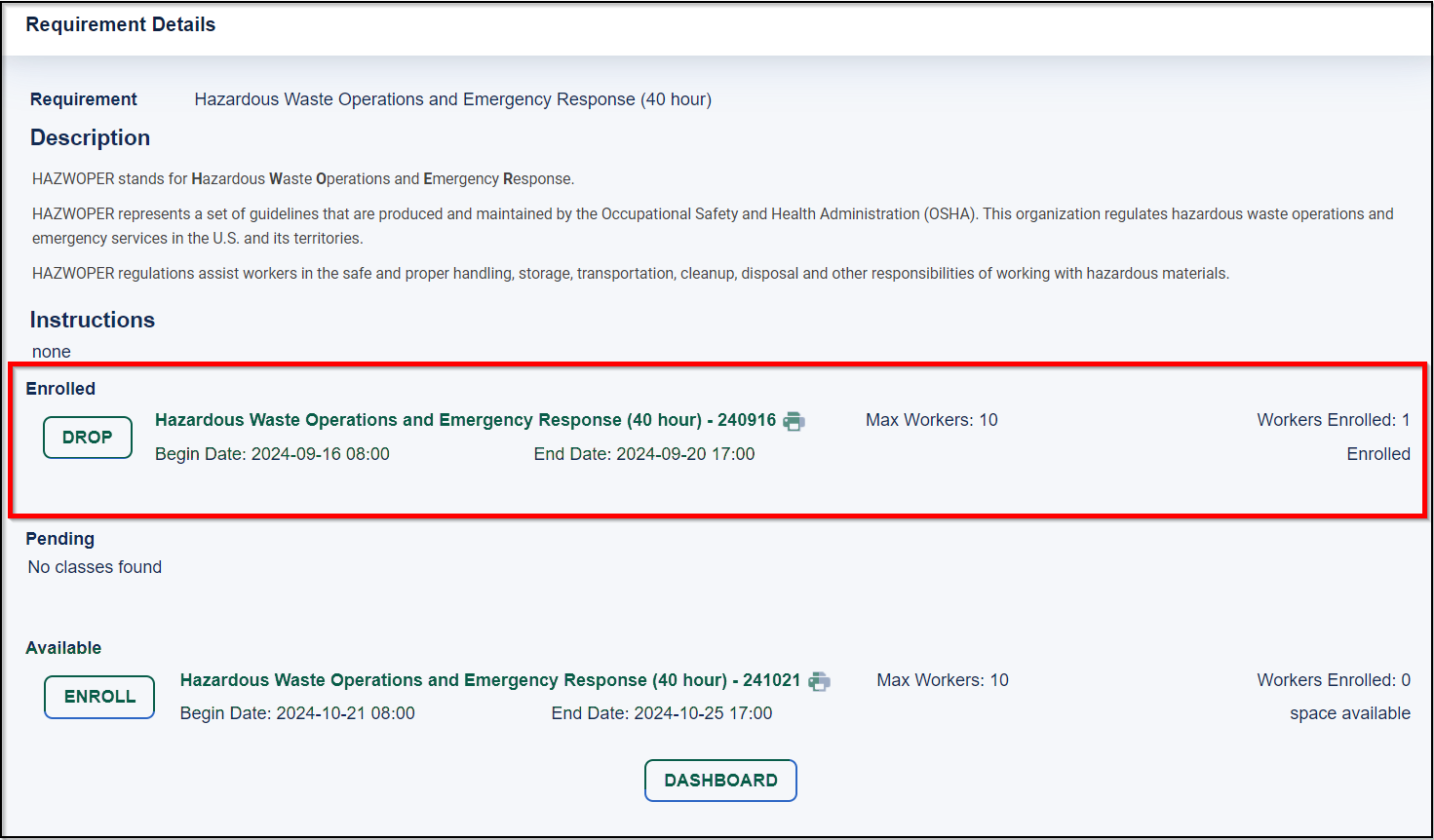
When the Worker clicks on an open enrollment class, they have the option to enroll in the class of their choice if there is more than one class option. If the Worker is enrolled in a closed enrollment class, they will see that they are automatically enrolled.
- In the Requirement To Do List widget, click on the requirement.
- Click Enroll next to the desired class.
- The class will appear in the Enrolled section with a new option to Drop.
Dropping Classes
Once the Worker has enrolled or been enrolled by an administrator in an open class, they can drop the class up until the last indicated drop day. If the Worker is enrolled in a closed enrollment class, they can request to be dropped from the class but cannot drop it themselves.
- In the Requirement To Do List widget, click on the class title.
- Click Drop next to the class.
- The class will reappear in the Available section with a new option to Enroll.
- Note that after the deadline to drop a class has passed, the option to Drop will no longer be available to choose, and you must reach out to the class instructor if you still need to do so.
Frequently Asked Questions (FAQs)
Supplier Support
- What do I do if I cannot see the Enroll options?
- The options to enroll by Worker or requirement are available only when the required classroom requirements exist for your connected Clients and your account has the required access.
- What if the Worker I need is not listed?
- Check that:
- You have permission to view the Worker.
- The Worker is assigned to the classroom requirement.
- The Worker’s requirement is within the to-do window.
- Why are there no classes available to assign?
- The selected requirement may not have an available class session. Review the class availability and select another requirement or class when one becomes available.
- Can Workers drop a class I have enrolled them in?
- Workers can access their classroom requirements. For open-enrollment classes, Workers can drop a class (including one enrolled by an administrator) until the listed drop deadline. For closed-enrollment classes, Workers can request to be dropped but cannot drop the class themselves.
Worker Support
- Is there a way to receive reminders or notifications for upcoming classes or deadlines to drop a class?
- A one-time notification lets Workers know about upcoming classes and will include the start date of the class and drop deadline if there is one, but no follow-up reminders are sent.
- What happens if a Worker misses a required class meeting—are there options for make-up sessions?
- The Worker will have to retake the class if that is an option, there is no way for them to make up a missed meeting within a class.
- Can Workers access previous class notes and documents after completing the class?
- Since the documents are associated with the task, once the task is completed there is no way to access the documents unless the Worker reaches out to the instructor.
- What types of support or contact options are available if Workers encounter issues with the enrollment or drop process?
- Workers can reach out to the class instructor with any issues they have regarding the enrollment/drop process. The contact information will be shown in the “Contacts” tab of the “Class Details” pop-up when they view the requirement within their Worker Management account.
- How can a Worker escalate a request to drop from a closed enrollment class if they need to withdraw for urgent reasons?
- If a Worker needs to withdraw or drop from a closed enrollment class for urgent reasons, they can use the instructor’s contact information provided in the Contacts tab of the Class Details pop-up when they view the requirement within their Worker Management account.
BACK TO TOP